CRMb 2.1: The Hive, a Company Calendar and the Week by Job
CRMb 2.1 is live on the App Store for iPhone, iPhone Duo, iPad and Mac, and on the web at crmb.io. It brings the Hive, your business's own bulletin board; a company calendar beside your schedule; the week read job by job; and photos and files on jobs and Hive posts. Update the app and you land in the same business, with the same clients, jobs and schedule.
The Hive, your business's own bulletin board
The Hive is where the word goes out to your team, and where your team answers back. It's on iPhone, iPad, Mac and crmb.io.
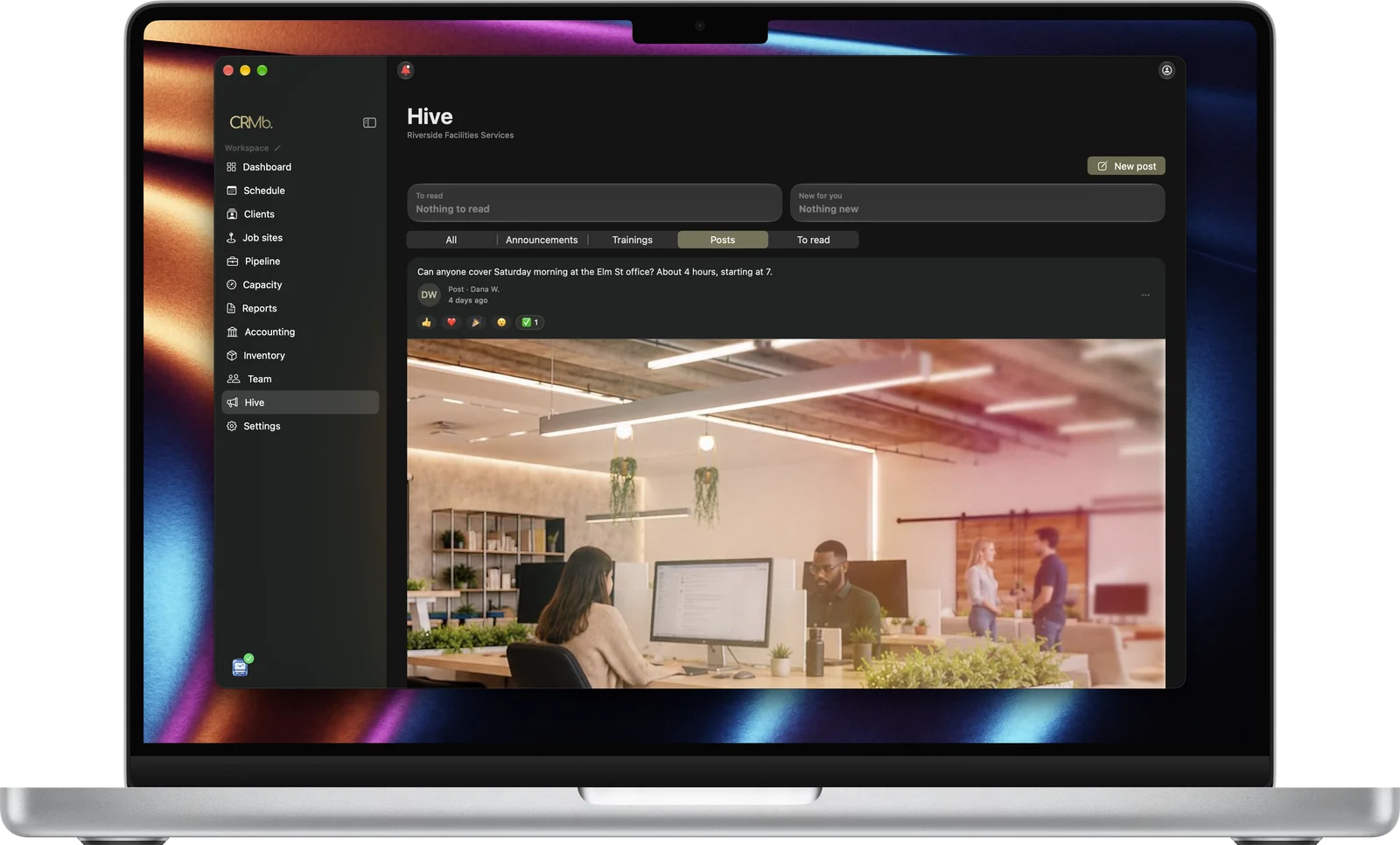
On the Mac, the Hive sits in the sidebar, with New post at the top right. On iPhone, you'll find it under More.
- Three kinds of post. An announcement is the word from you to the team. A training is something each person reads or watches. A post is everyday news: a shout-out, a heads-up, a photo from the job.
- Must read. Mark an announcement Must read and it stays at the top until each person taps I've read this.
- Trainings with a due date. Each person taps Mark as done when they finish, and you see who has and who hasn't.
- The right people. Send a post to everyone, a team or the people you pick. Pin up to three at the top, and post now or at a day and time you choose.
- Photos, files, links and video. A post holds up to ten photos and ten files, plus a link. A YouTube, Vimeo or Loom video plays right in the post.
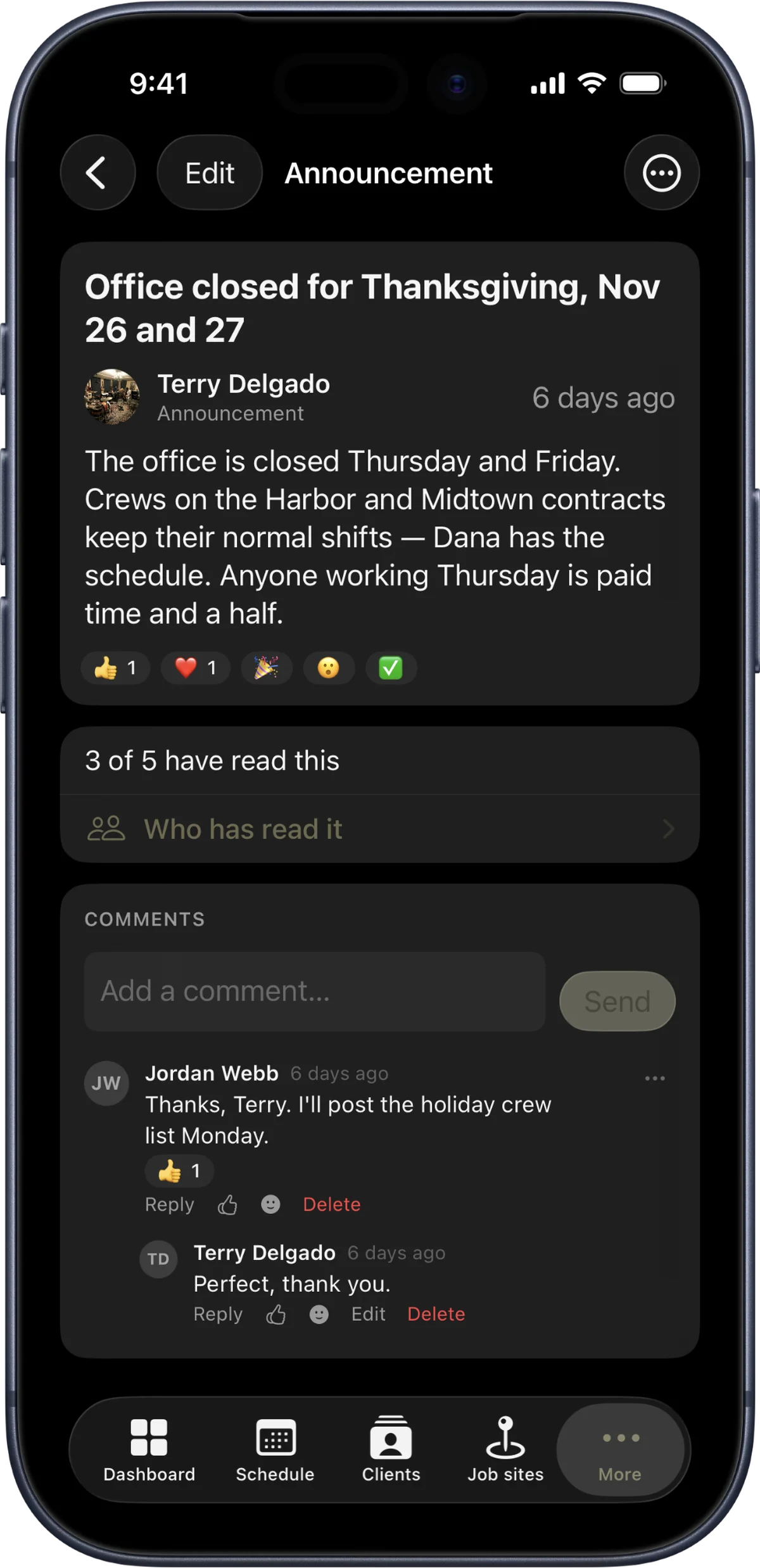
Whoever posts a Must read announcement sees how many have read it. A tap on Who has read it lists who has and who hasn't yet.
- Talk it over. Comment, reply, tag a teammate with @, and react with one of five reactions.
- Know who's talking. Tap a name or a picture to open that person's contact card.
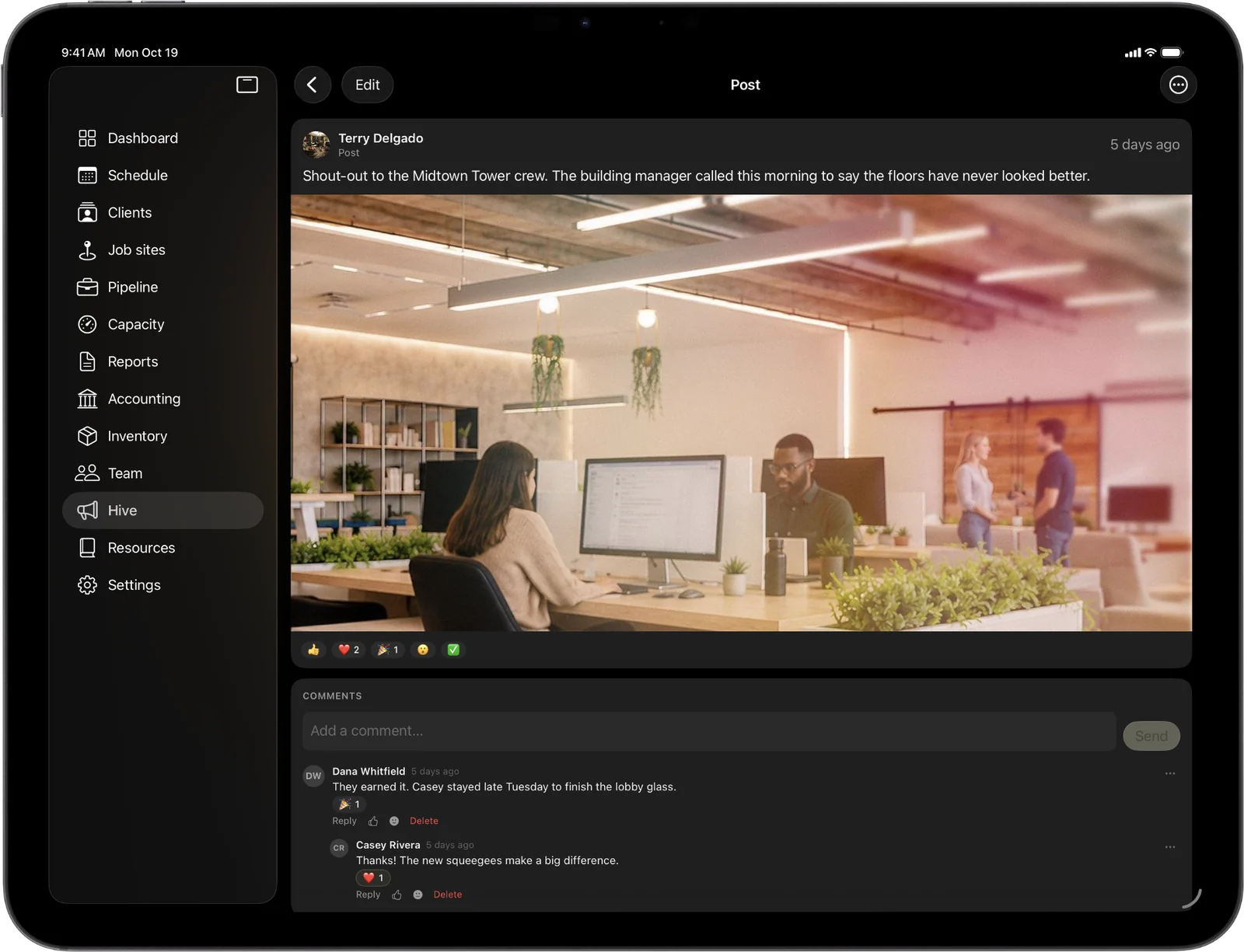
Reactions sit right under the post, and comments come next, each reply under the comment it answers.
Your business runs its own Hive.
- Your rules, in your own words. The owner, or anyone allowed to post, writes the Hive rules in Settings, along with who to ask about them. Everyone agrees to them the first time they open the Hive, and again when they change. CRMb writes no rules for your business, and if you write none, nobody is asked to agree to anything.
- Report and block. Report a post or a comment and it's hidden for you right away, and your business's owner and managers will look at it. Block a person and you stop seeing their posts, comments and mentions, and they won't know. A Must read from the owner still shows, so nobody misses what the business needs them to know. Unblock anyone in Settings.
- Notices that matter. In Settings, under Notifications, Hive tells you when something needs you to confirm it or finish a training, and Hive summary comes once a day.
- You decide who posts. In Team, under Permissions, three boxes set who can open the Hive, who can comment and react, and who can post. Everyone can open it and comment to start, and posting starts with the owner and managers.
On iPhone Duo's inner display turned sideways, the Hive reads in two columns.
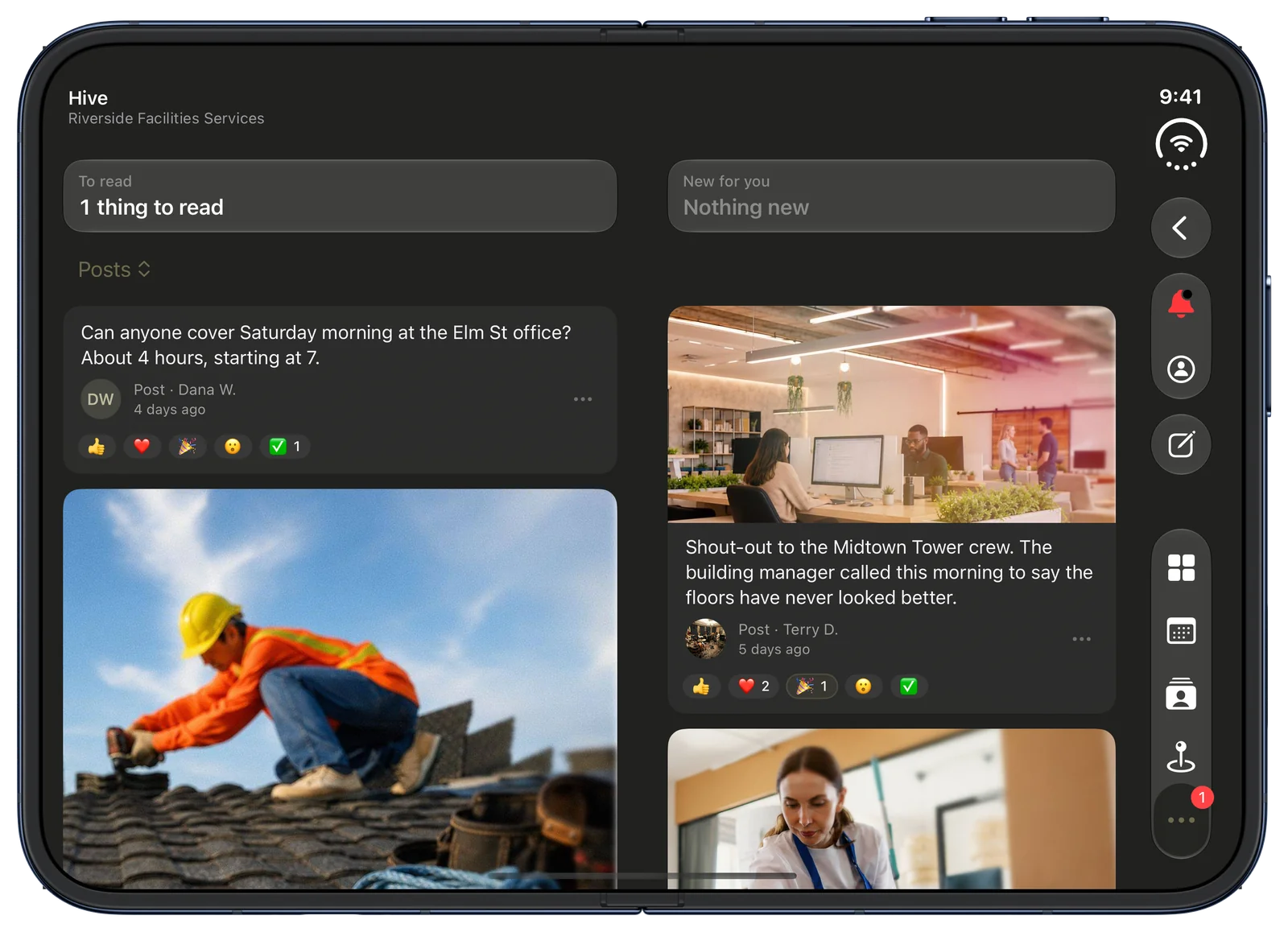
Open in landscape, the feed deals its posts into two columns, each with its reactions, and the Hive's own buttons sit in a toolbar down the side.
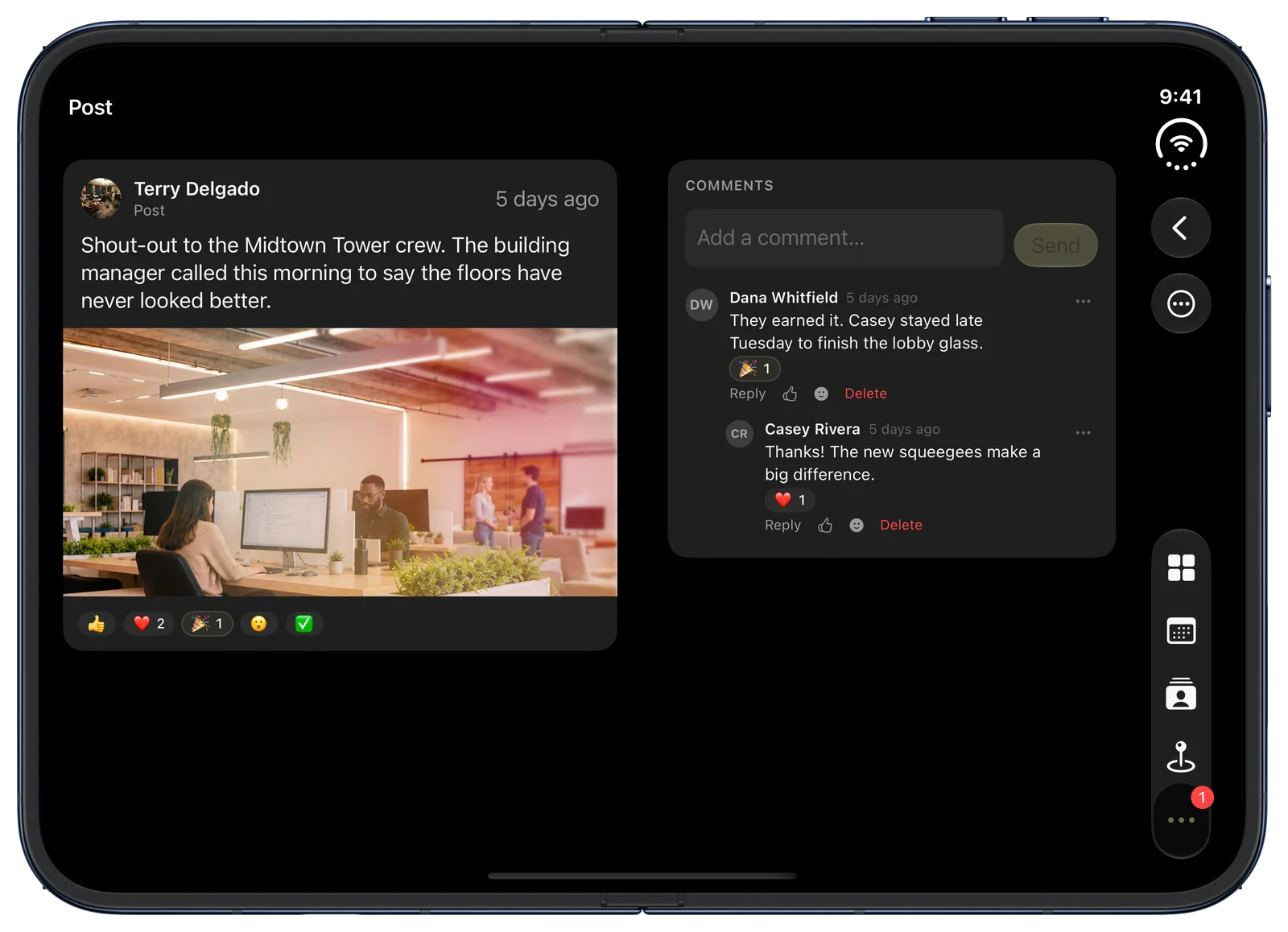
Open a post sideways and it sits on the left while its comments run down the right.
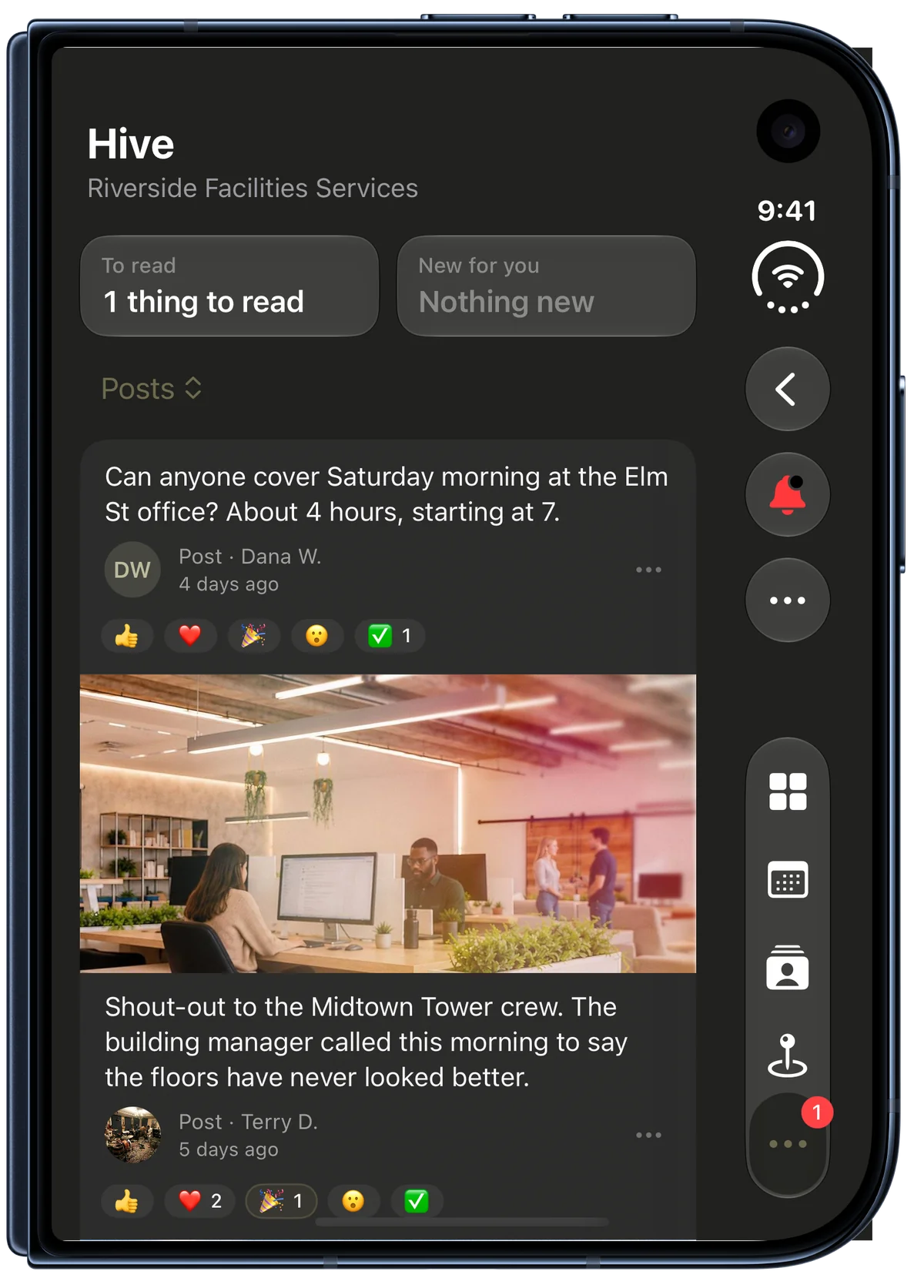
Closed, the Hive runs on the outer display the way it runs on any iPhone, one post after another.
There's more on the Hive page, and the Hive overview is a tour of it, step by step.
A company calendar
The Schedule now has a Calendar beside it, for meetings, calls, visits, deadlines and closed days, by day, week or month.
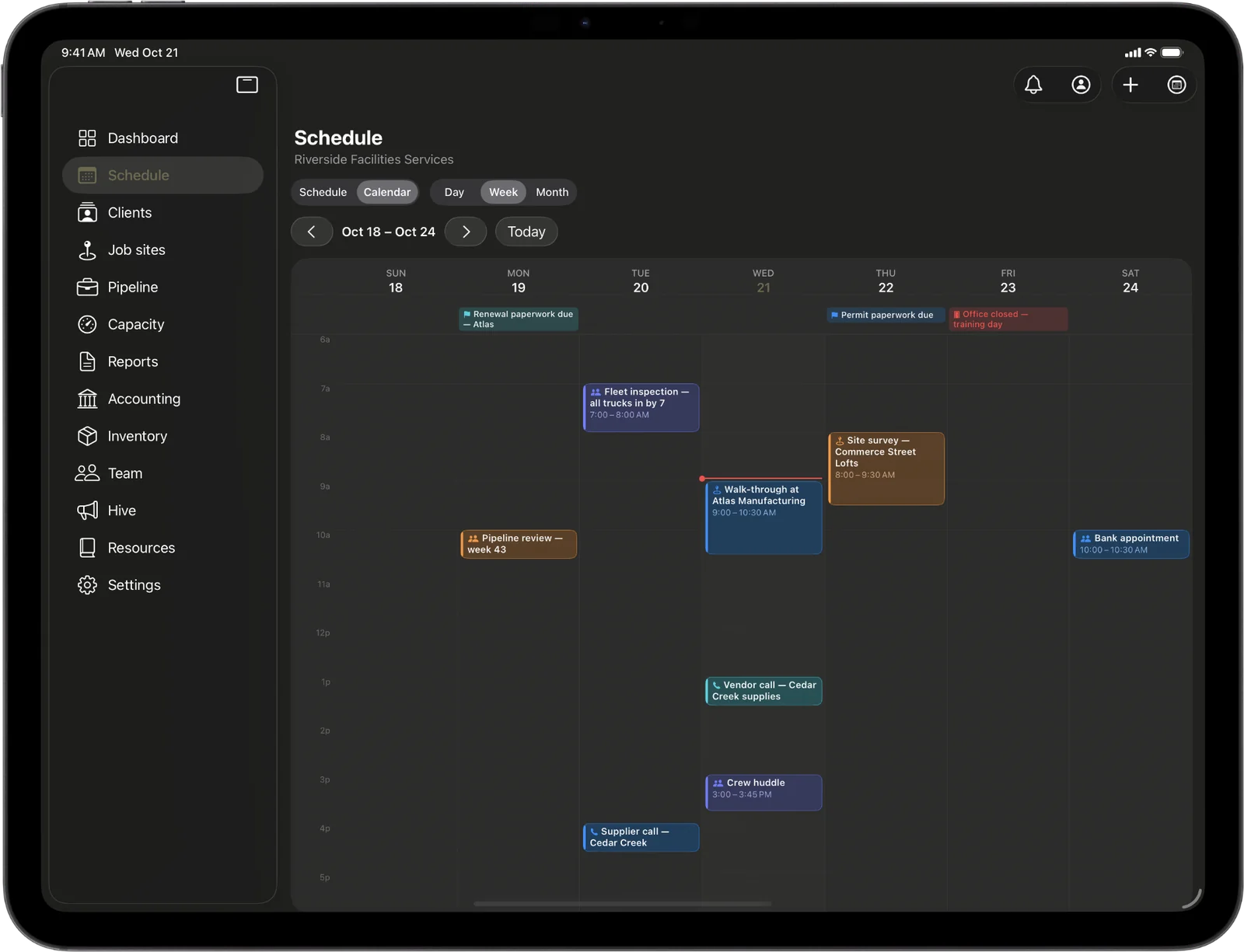
Each calendar has its own color, and a red line marks the time now. The red block on Friday is a closed day.
- Three kinds of calendar. Every teammate has My calendar, each team has its own, and the business has one everyone sees.
- Invite your team. Add teammates and they answer Going, Maybe or Can't go. On the business calendar or a team's, anyone it covers can answer too, and answering puts them on the event.
- The right people hear about it. A new event on the business calendar tells everyone. One on a team's calendar tells the team and its manager.
- Answers that matter come back. Whoever sets up an event on their own calendar or a team's hears back when someone answers Maybe or Can't go. On the business calendar nobody is told, so an all-hands never floods the organizer.
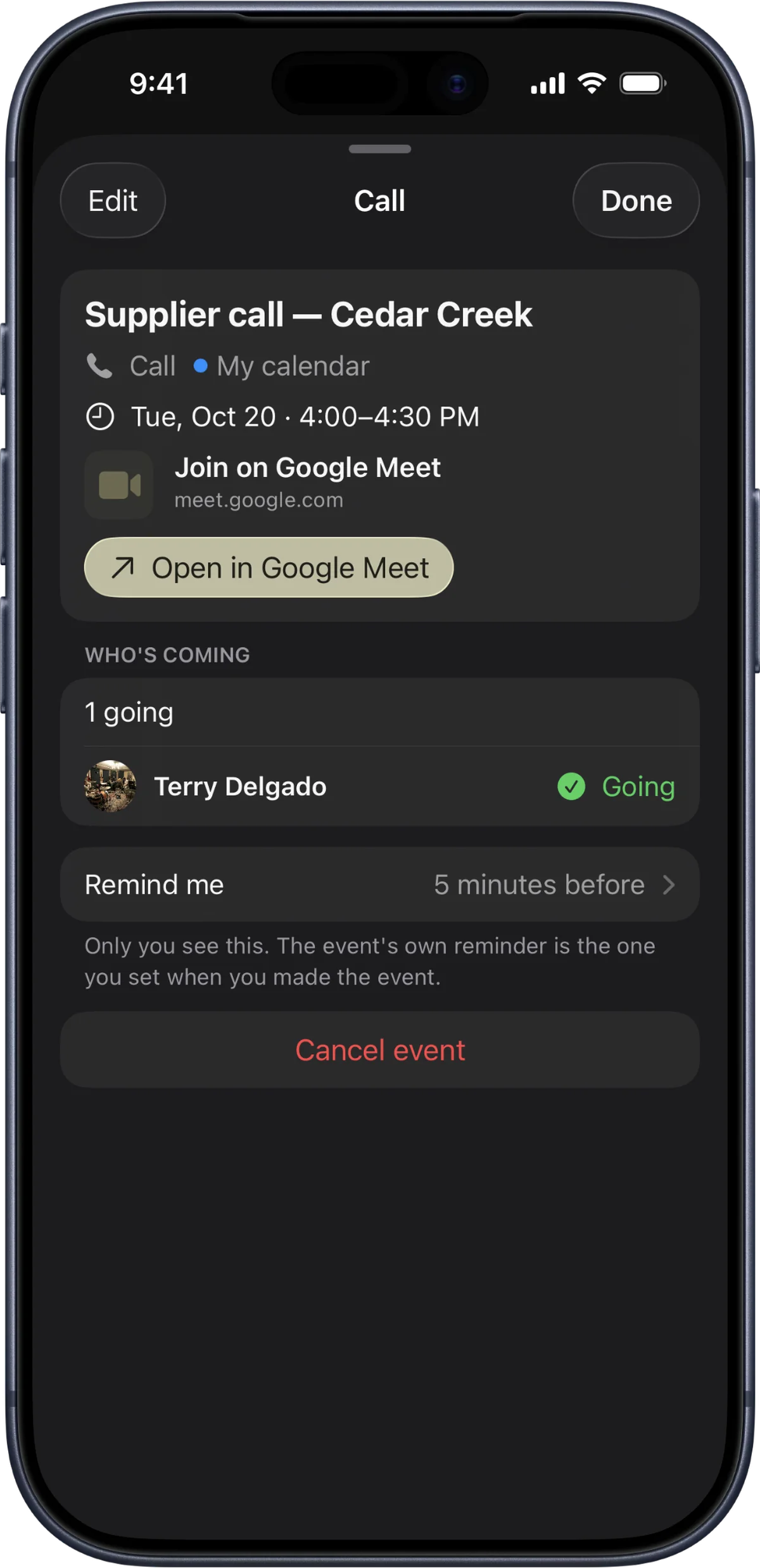
A Google Meet link in Where shows as a card that opens the meeting.
- One field for where. Where takes a place or a link to join. Zoom, Google Meet, Microsoft Teams, Webex and FaceTime links each show as a card named for the service, and any other link shows Open link.
- Your own reminder. Each person picks their own reminder on each event, from 5 minutes to a day before, or none, and only they see it.
- Your shifts, in view. Your own shifts show on the Calendar as busy time, and your time off shows on its days.
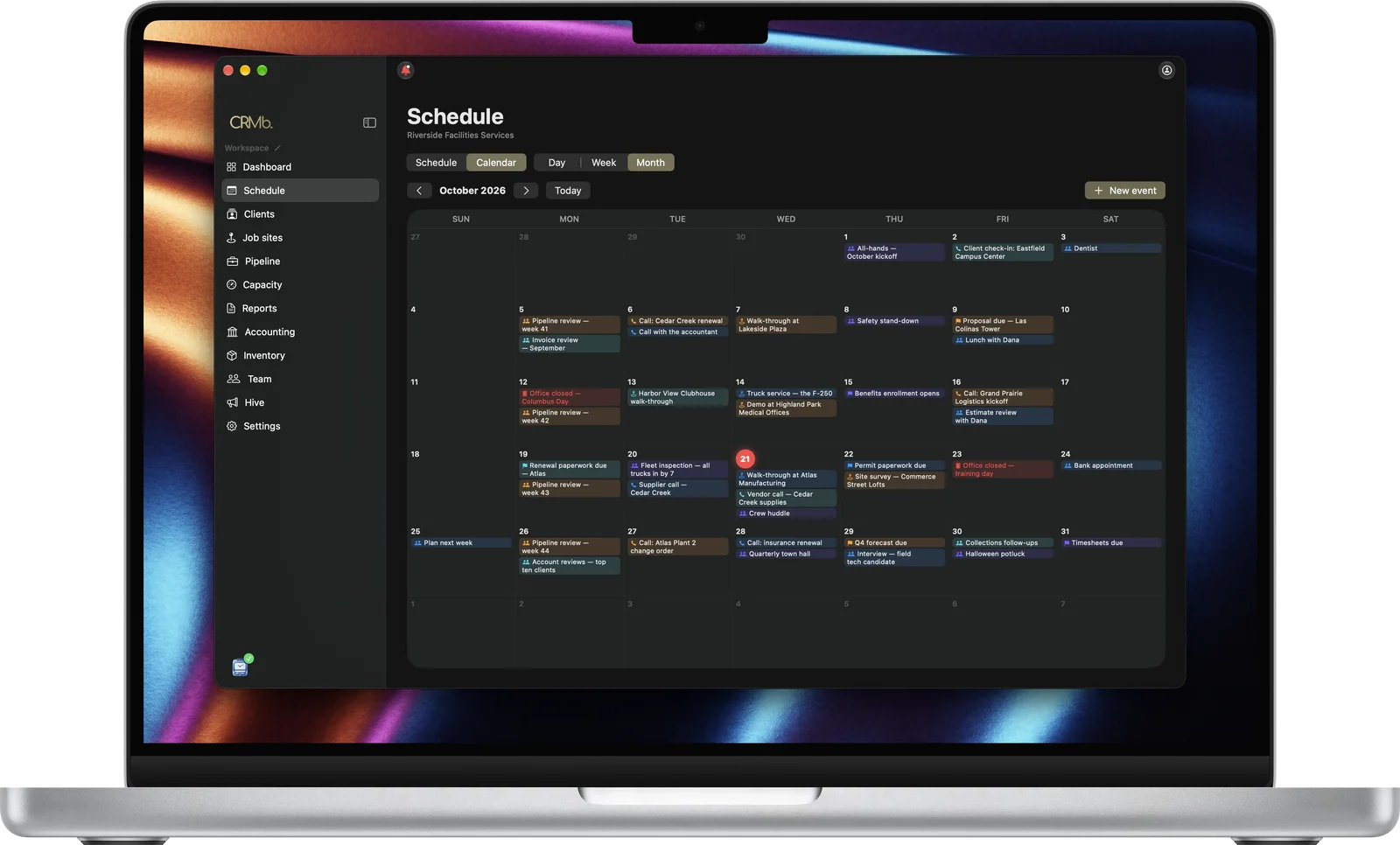
On the Mac, the month lists each day's events by name, with New event at the top right.
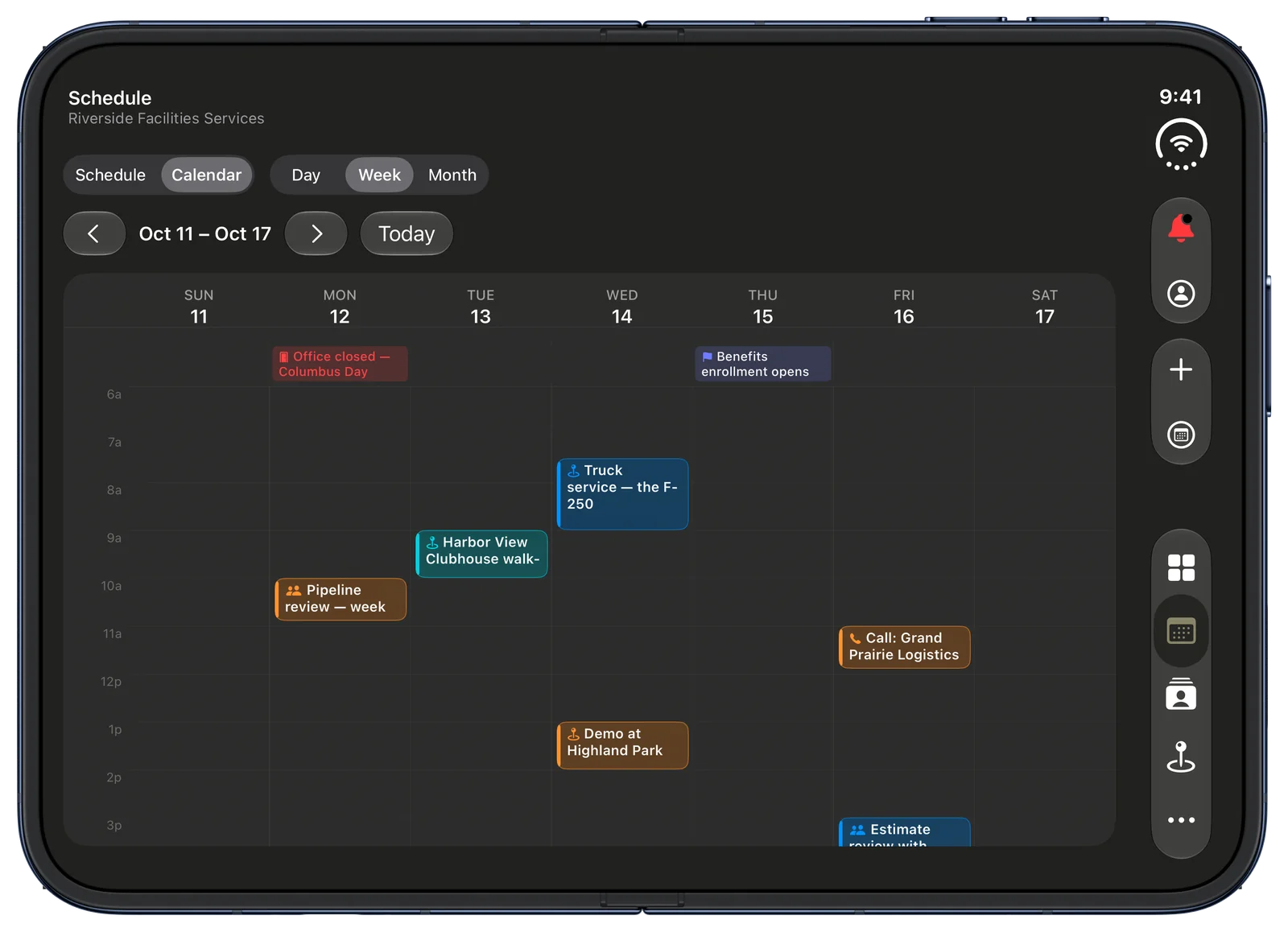
On iPhone Duo's inner display turned sideways, the Calendar's week fills the screen, with the closed day and the deadline in the all-day row and the week's events in their calendars' colors.
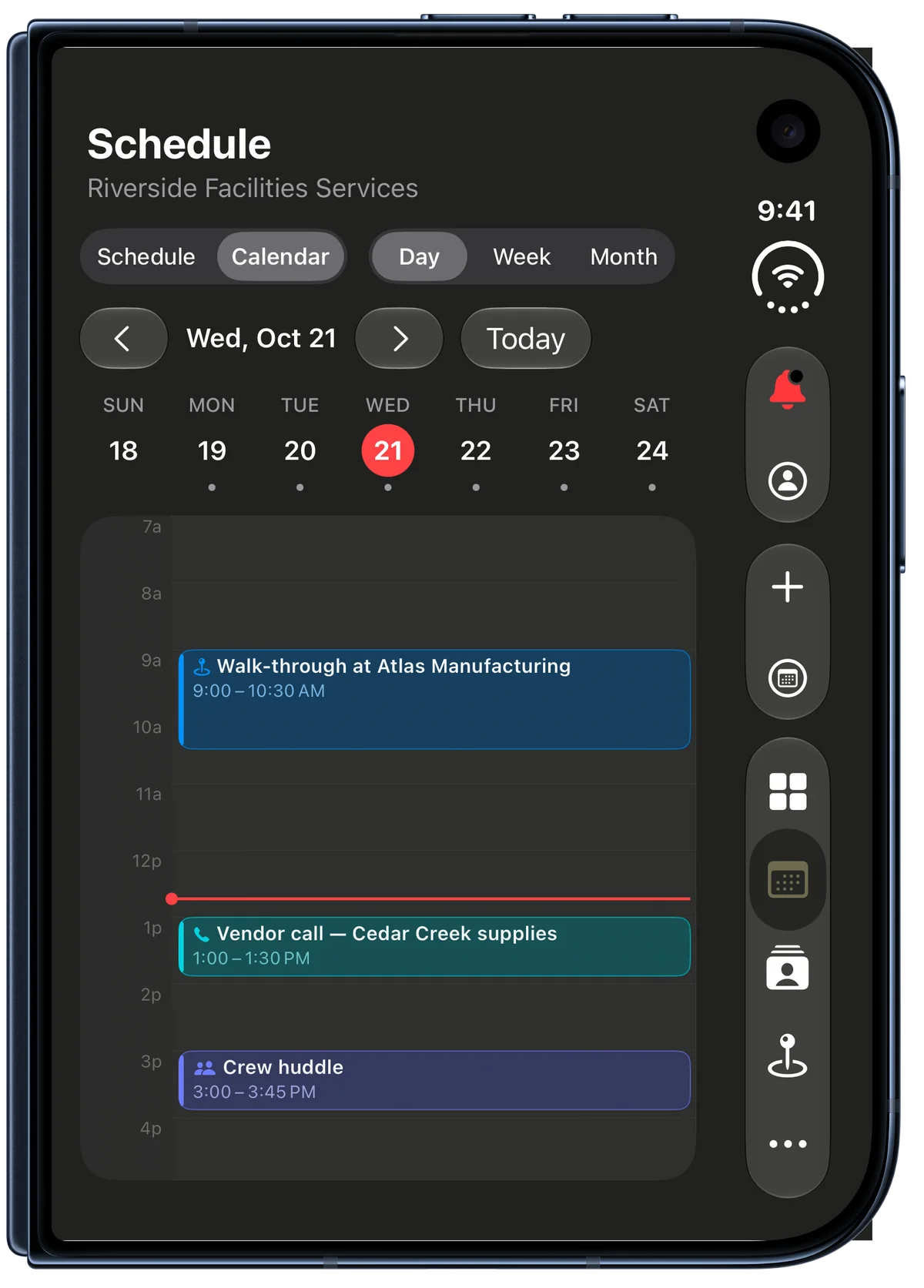
Closed, the outer display shows the day, with a red line at the time it is now.
There's more on the Scheduling page, and Scheduling a week walks through planning the crew's week.
The week by job
Jobs now sits between Schedule and Calendar on the Schedule tab. It shows the same week of shifts read by job: one block per job per day, with the job's name, its start time and client, and its crew and hours, like 4 people · 32h. Tap a block to open the job.
- If you can see labor cost, each block shows its labor cost too.
- New job sits with New shift in the toolbar.
- On a job's page, set its target date. Each row under Scheduled work opens its shift.
- In Team, under Permissions, the new boxes for the Calendar and the Jobs view start on for everyone.
Photos and files on jobs, posts and tasks
Jobs and Hive posts now hold photos and files, the way Board tasks do, and you can add several at once.
- Choose photos or files, or paste them in. On iPhone and iPad you can also take a photo.
- On the Mac, on iPad side by side and on iPhone Duo, drop files in, or drop them onto a Board card to attach them to that task. On crmb.io, drop or paste files anywhere on a job's page.
- Open any file in place, save a copy, or remove it. Each file shows who added it and when.
- Photos are made smaller and lose their location before they leave your device.
- Files can be up to 50 MB each: photos, PDFs, text, CSV, Word, Excel, PowerPoint and ZIP.
Also in 2.1
- Someone on two shifts at once is marked Twice in red, and the shift editor tells you before you save.
- An open Schedule updates the moment a teammate changes a shift.
- When two devices send shifts to the same Apple Calendar, each shift shows up once, and the event's link opens the shift in CRMb.
- On the Mac and the open iPhone Duo, Dashboard lines wrap instead of cutting off.
If you missed last week's release, CRMb 2.0 made CRMb ready for iPhone Duo and added online payments through Stripe, repeating invoices, and a choice of what each teammate can open.
Frequently asked questions
Does the Hive cost extra?
No. The Hive comes with your CRMb plan, and it works during the 14-day free trial too.
Does CRMb set rules for our Hive?
No. Your business writes its own rules in Settings. If you write none, nobody is asked to agree to anything.
Who can post in the Hive?
The owner and managers to start, plus anyone the owner allows in Team, under Permissions. Everyone else can read, comment and react.
Who sees My calendar?
Only you. Someone else sees an event on it only when you add them to that event.
Do calendar events count as hours on the Schedule?
No. An event never counts as booked hours or labor cost. The Schedule does tell you when a shift lands on a closed day, or during an event the person is going to.
Get CRMb 2.1
- iPhone, iPad and Mac: Update or download CRMb on the App Store
- Web: crmb.io/app
- Android: CRMb on Google Play
Every new business starts with a 14-day free trial.