Hive
Hive overview
A tour of the Hive — your business's own news board for announcements, trainings and everyday posts, and the rules your business writes for it.
The Hive is your business's own news board. Announcements from you and your managers, trainings each person finishes by a due date, and everyday posts from the job all land in one place, for the whole team or just the people you pick. The same Hive opens on the web and in the iPhone, iPad and Mac apps.
Everyone on your team can open the Hive, comment and react. Writing posts — and pinning, hiding, and sending announcements everyone must confirm or trainings everyone must finish — belongs to the owner and to anyone you give Post in Hive in Team → Permissions. Managers start with it; employees don't.
Step 1 — The Hive at a glance
Two tiles sit at the top. To read counts what's waiting on you — "2 things to read" — and New for you counts the posts you haven't opened yet — "3 new posts". Under them are the pinned posts, up to three, each with who wrote it and when; whoever can post sees Unpin beside each one.
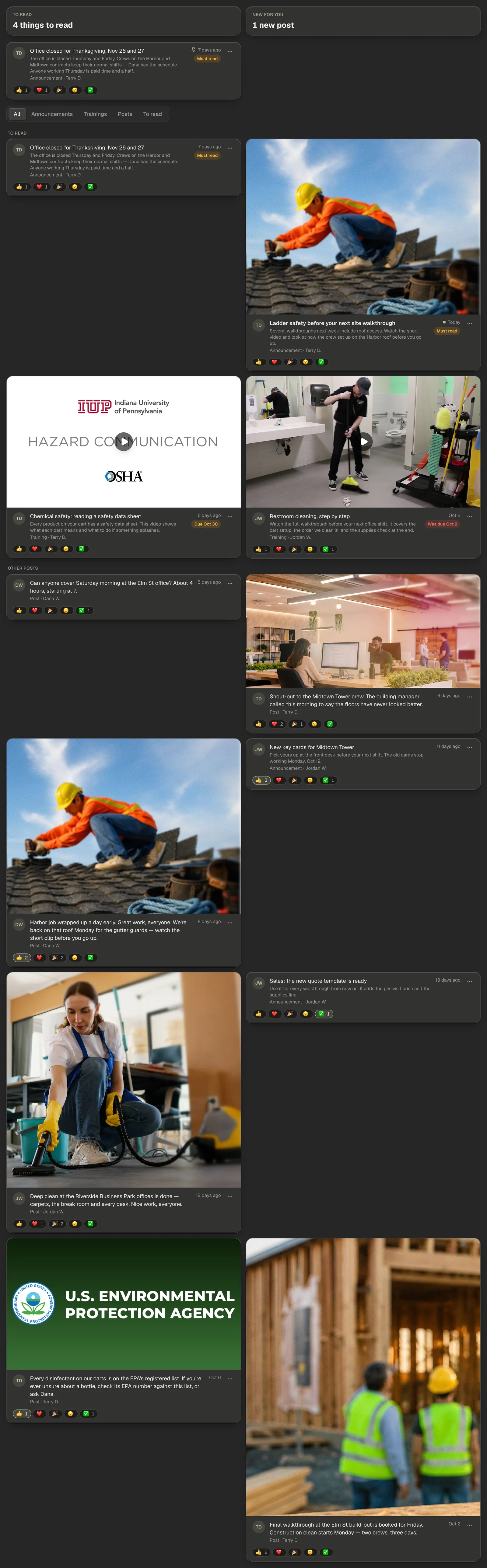
The row of filters narrows the list: All, Announcements, Trainings, Posts and To read. Below it, the feed puts anything waiting on you first, under To read, and everything else under Other posts. Each post is a card. Its first photo — or its video's picture, with a play button — runs across the top, and under it the title is shown in full, never cut short, then the kind of post, who wrote it, and when it went out. A post with no picture is just its words. A tag on the right tells you what it needs from you: Must read on an announcement you haven't confirmed, "Due Oct 20" on a training, "Was due Oct 2" when it's late. Posts you haven't opened have a bold title, with a dot beside the day. Every card ends with the five reactions 👍 ❤️ 🎉 😮 ✅ and how many have pressed each — press one right there to react without opening the post. Press the writer's picture or name to see their contact card.
Note — A post set to go out later shows only to the person who wrote it and the people who can post. Its row reads "Goes out Nov 3 at 9:00 AM" until then, and nobody can comment on it or react to it before it goes out.
Step 2 — Write a post
Press New post at the top right. Pick its Type:
- Announcement — the word from you to the team. Tick Must read and each person is asked to tap I've read this, and you see who has.
- Training — something each person reads or watches, by a due day you can set. Each person taps Mark as done when they finish it.
- Post — an everyday post: a shout-out, a heads-up, news from the job. It never asks anything of anyone.
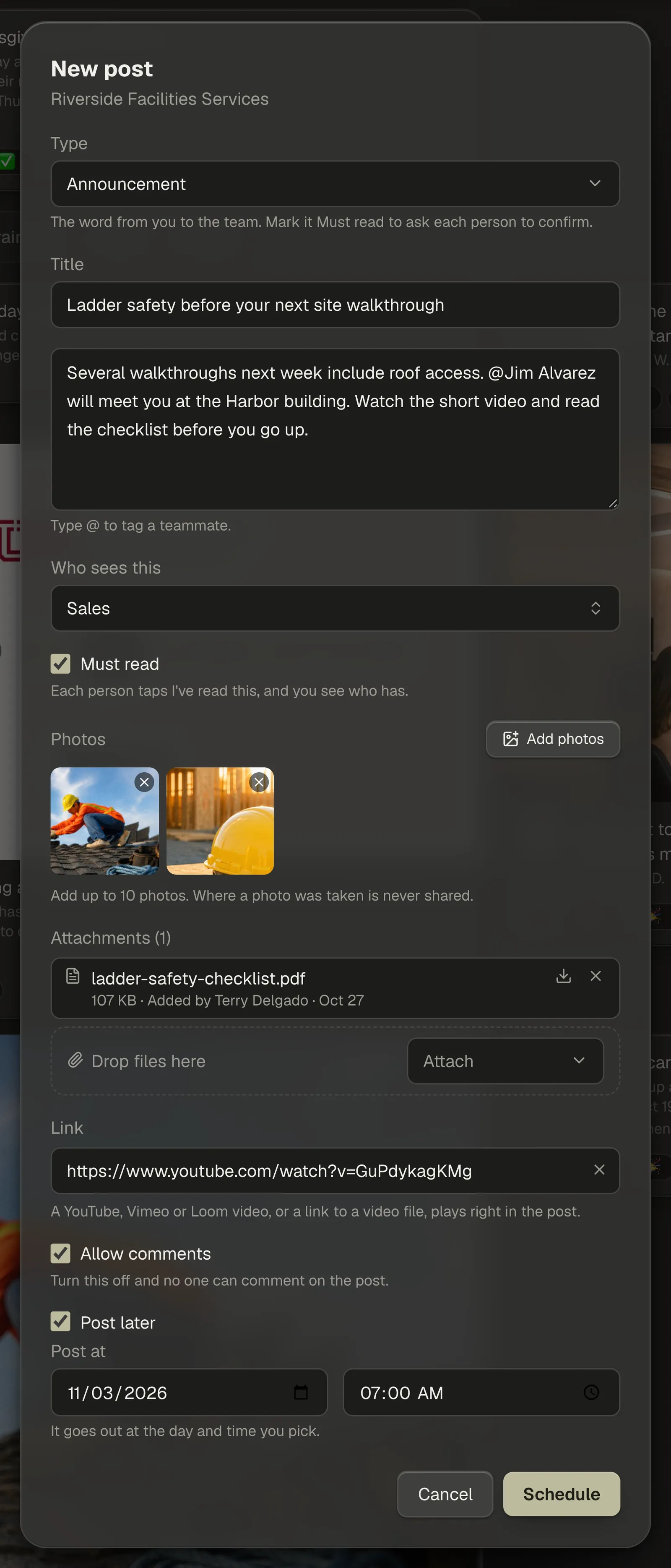
An announcement or a training takes a title; then write the message. Type @ to tag a teammate. Under Who sees this, pick Everyone, one or more Teams, or People by name. Once a post is out, its words can change but who sees it can't — to send it to someone else, hide it and post again.
Add photos takes up to 10 photos; where a photo was taken is never shared.
Under the photos, Attachments takes up to 10 files beside them: drop files anywhere on the window, paste them, or press Attach and pick Choose files or Choose photos. A file can be up to 50 MB: a PDF, a Word, Excel or PowerPoint file, text, CSV or ZIP. A photo you drop, paste or choose there joins the photos above, not the files.
Add a link takes one link. A YouTube, Vimeo or Loom video, or a link to a video file, plays right in the post; any other link opens in a new tab. Untick Allow comments and no one can comment on the post.
To send it later, tick Post later and pick the day and time under Post at. The button reads Schedule instead of Post, and the post goes out at the time you picked.
Step 3 — Read, confirm and talk back
Press a post to open it. The post is one card: its title, who wrote it and when, the message, then its photos and video in one frame (a video fills the width of the frame, with the other photos as small squares underneath; with no video, the first photo fills it), then its files, and last, the five reactions with their counts. Press any photo to see it full size, and use the arrow keys to move through the rest. Press the writer's picture or name to see their contact card.
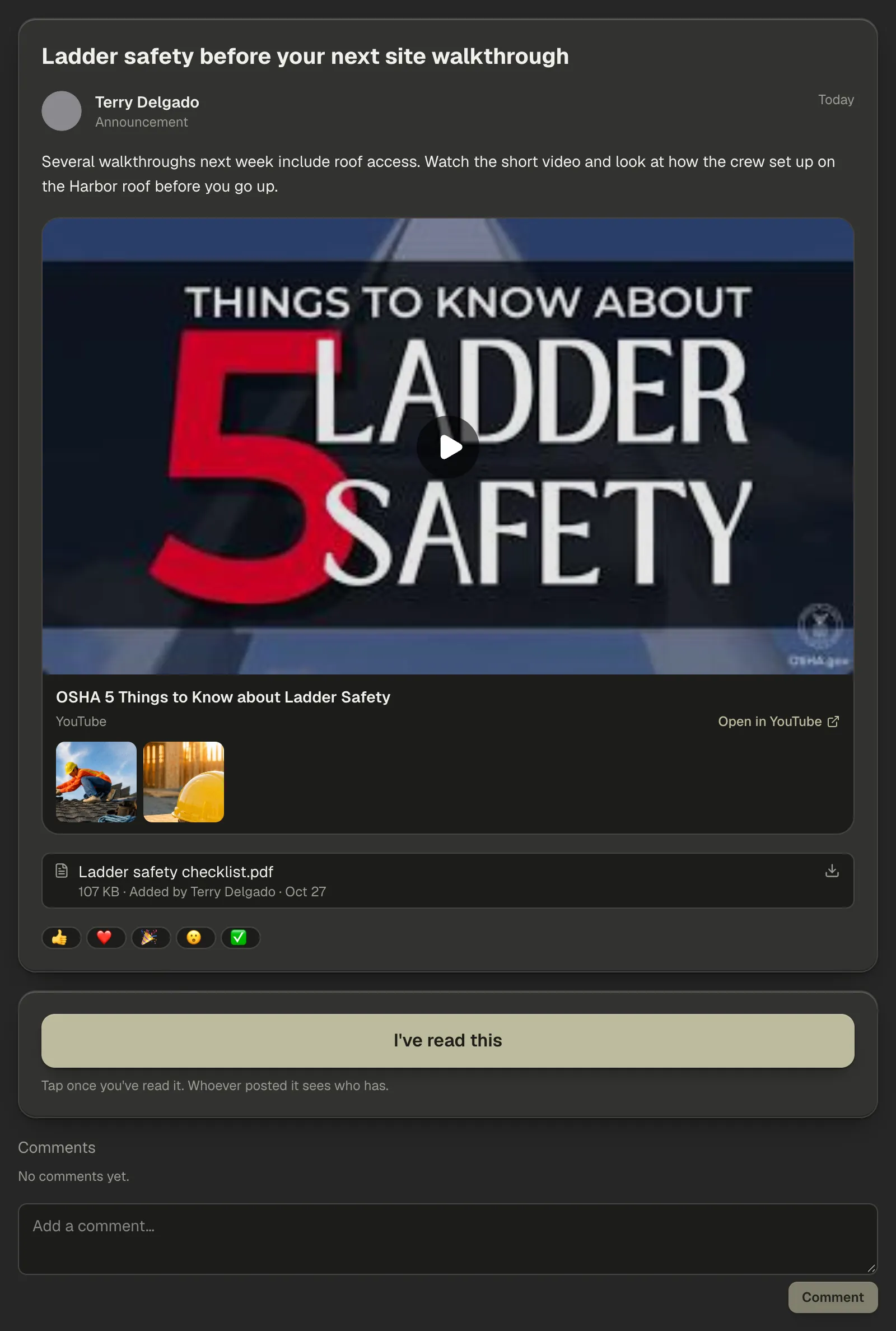
Under the photos and the video come the post's files, each with its name, its size and who added it when. Click a name to open the file in a new tab, or the arrow beside it to download it. Whoever wrote the post, and anyone who can post, can add more by dropping or pasting files anywhere on the post or with Attach, and take one off with its ×, which asks first: Remove this file? In the feed, a post that is only files is named by its file, or by how many there are.
When a post asks something of you, its button sits right under the card: I've read this on a Must read announcement, Mark as done on a training. Once you've pressed it, the post says when — "You read this on Oct 20" — and it leaves your To read list. Under that come the comments: add one, answer one level deep, and @ tags a teammate.
If you wrote the post, or you can post, a post that asks something shows how many have done it — "8 of 11 have read this" — and Who has read it (or Who has finished it on a training) lists who has and who hasn't yet.
Step 4 — Pin, hide, report and block
Every row and every open post has a ⋯ menu. The person who wrote a post finds Edit there. Whoever can post finds Pin — up to three posts stay pinned at the top of everyone's Hive — and Hide. A hidden post leaves everyone else's Hive at once; the writer and the people who can post still see it, marked Hidden, and can bring it back with Show again.
On a post or comment someone else wrote, Report hides it for you straight away and lets your business's owner and managers know, so they can decide what to do. You're never named. Block hides that person's posts, comments and mentions from you, and they won't know. A Must read from your business owner still shows, so you never miss what the business needs you to know. The people you've blocked are listed under Settings → Notifications → Blocked people, where you can unblock them.
Step 5 — Write your own Hive rules
Your business decides how its Hive is used — CRMb doesn't write any rules for it. Under Settings → Hive rules, the owner and anyone who can post write the rules in their own words, and Who to ask names who to go to with questions: a name, an email or a phone number.
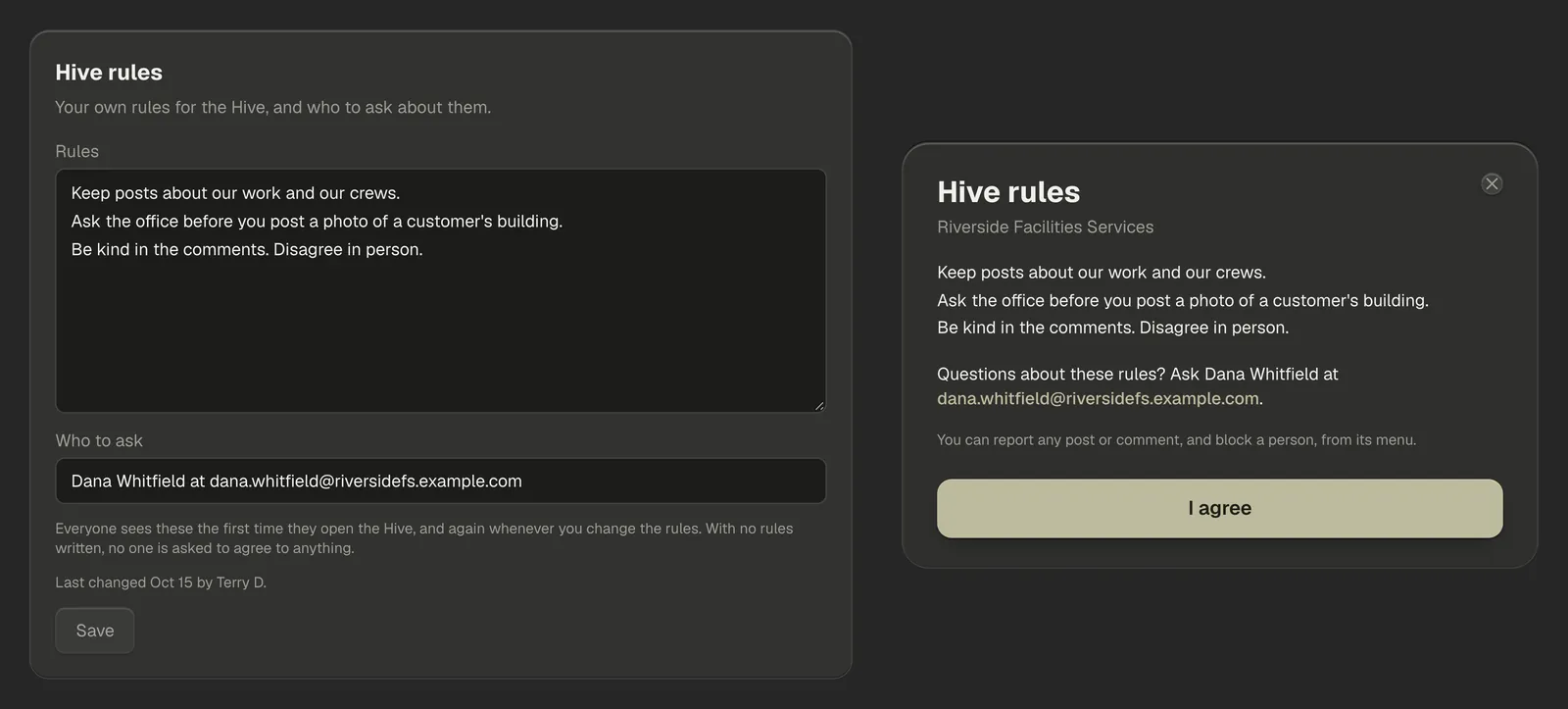
Everyone sees your rules the first time they open the Hive, and again whenever you change the words, and taps I agree before the Hive opens. Changing only who to ask doesn't ask anyone again. Until someone agrees, they can't post or comment. If they close the window, the Hive shows Read the Hive rules so they can open it again. Under the boxes, a line says when the rules were last changed and by whom.
Note — With no rules written, no one is asked to agree to anything. Empty the Rules box and press Save to take your rules away.