Clients
Send a quote to a client
How to put together a quote for a client, get it in front of them for approval, and turn it into an invoice once they say yes.
Quotes use the same editor as invoices, so anything you already know about line items, discounts, and tax carries over. The difference is what happens at the end: instead of getting paid, you're waiting on a yes — and once you get it, CRMb turns that same quote into an invoice for you.
Step 1 — Start from the client
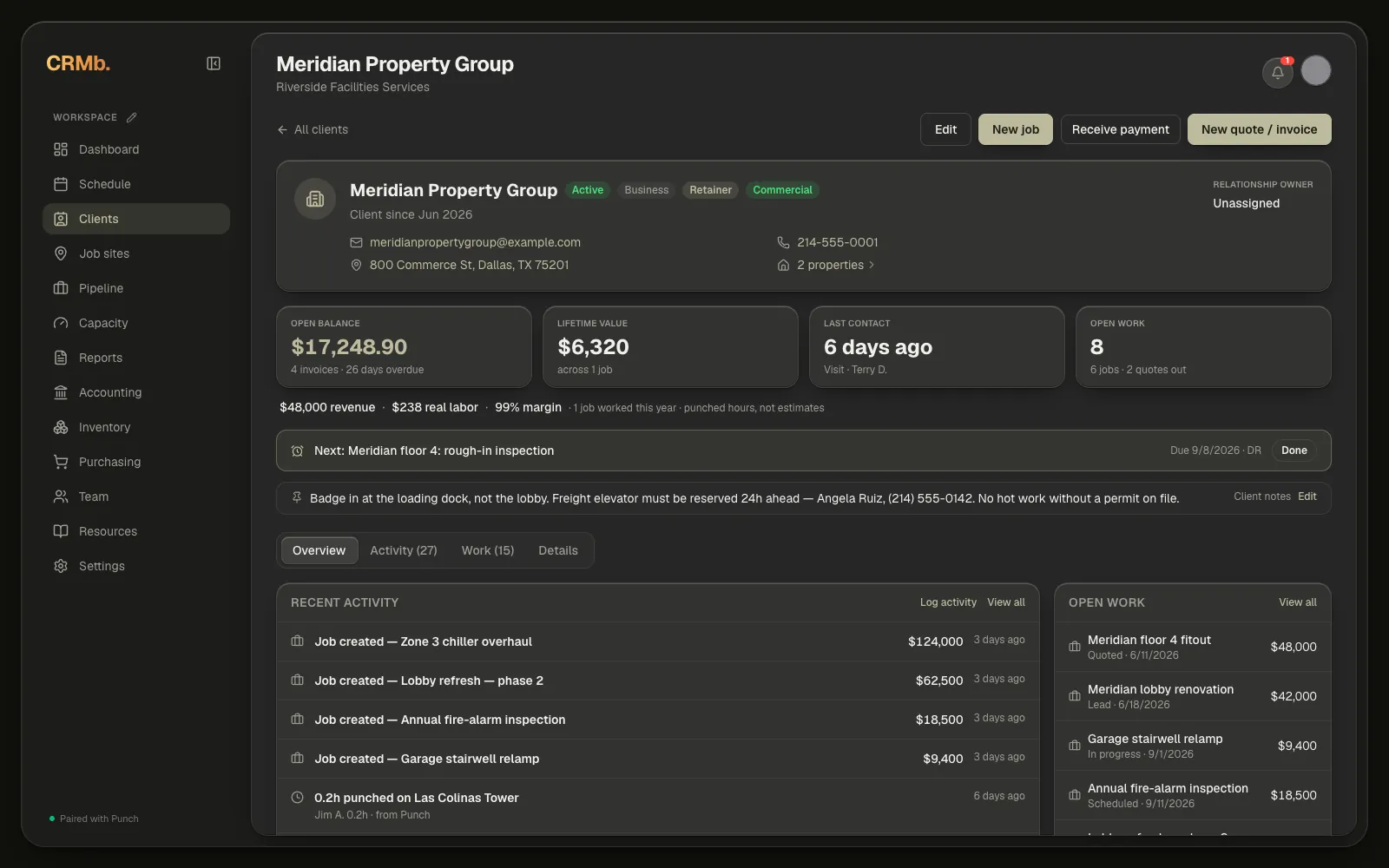
Open the client you're quoting and click New quote / invoice in the top-right corner.
Step 2 — Choose Quote
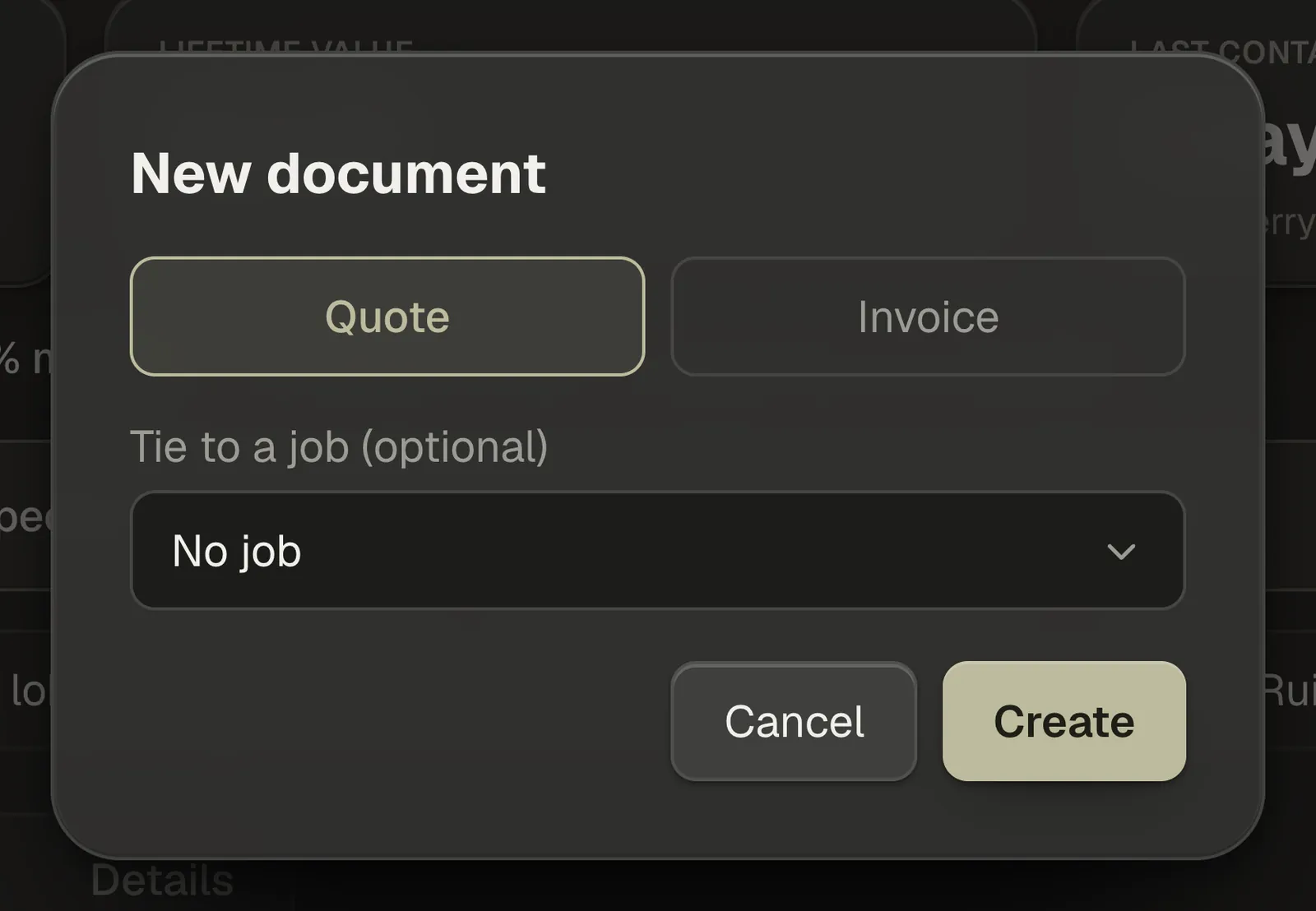
In the New document window that opens, pick Quote and click Create. You can always convert it to an invoice later, so it's fine to start here even if you're fairly confident the job is happening.
If this client already has jobs, a Tie to a job (optional) picker appears in the same window. Tying the quote to a job is what lets it pull that job's real hours and materials in the next step.
Step 3 — Fill out the quote
CRMb opens a blank quote pre-filled with the client's info and the next quote number — they run Q-1001, Q-1002, and on — along with the default terms, tax rate and notices you set in Settings under Invoice & branding. Fill in the rest:
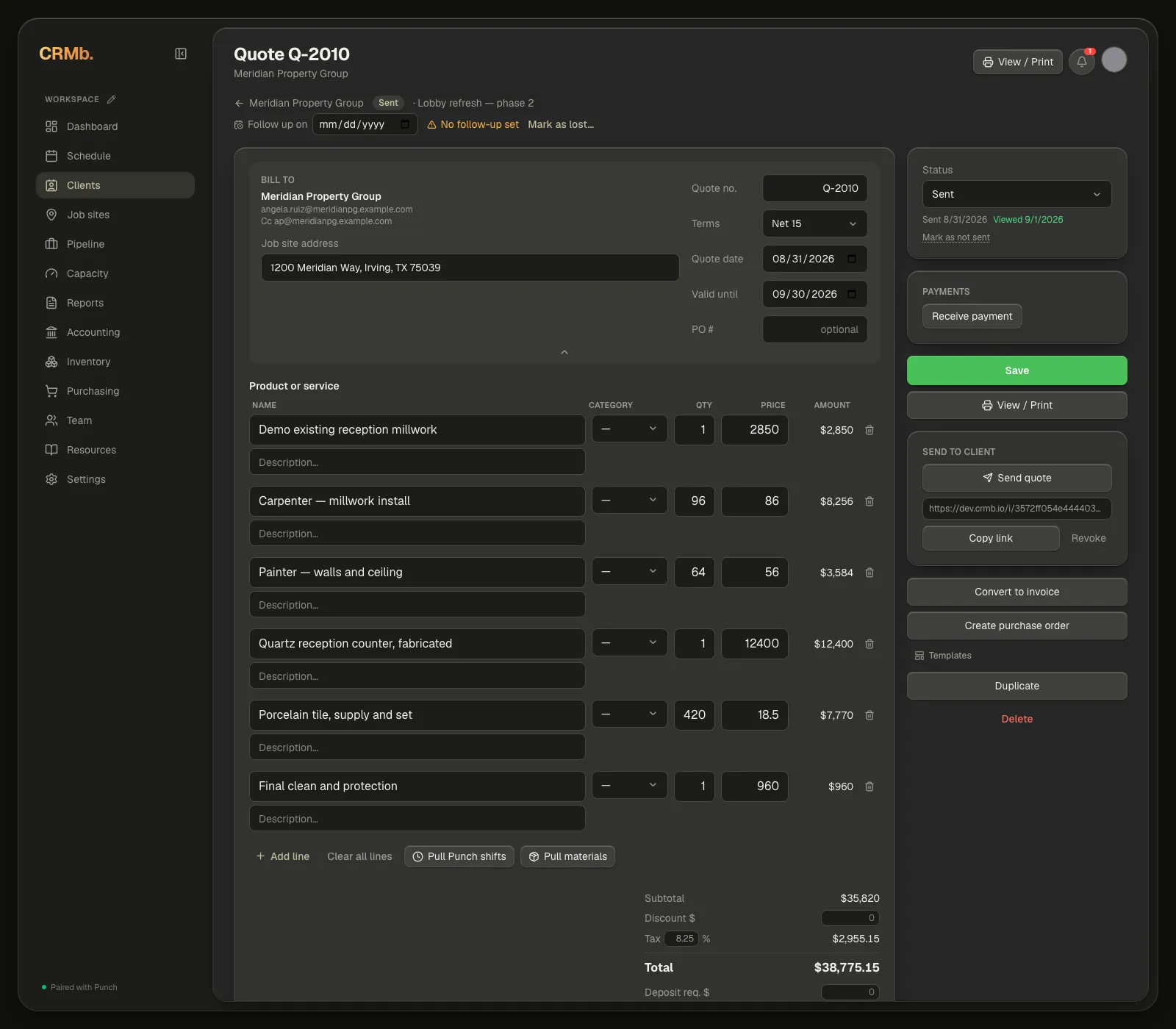
- Bill to — the person the quote is addressed to. If a contact on this client has Copy on invoices & quotes turned on, you'll see them listed as Cc right under Bill to, before you send anything.
- Job site address — optional, but useful when a client has more than one location.
- Terms and dates — set payment Terms (e.g. Net 15), the quote date, and a Valid until date so the client knows when the pricing expires.
- PO # — optional. Fill it in when your customer needs their own purchase order number on the paperwork.
- Line items — add each product or service by hand with Add line, or pull them in automatically with Pull Punch shifts (the real hours your crew punched at this client's job sites) or Pull materials (the inventory materials logged on the job — the quote has to be tied to a job for that one).
- Discount and tax — apply a flat dollar discount and a tax rate; the subtotal, tax, and total update as you go, underneath the line items.
- Notes and Notices / disclaimers — add payment terms, scope notes, or any boilerplate the client should see. Both print on the quote your client opens.
Step 4 — Save, send it, or convert it
Down the right side you'll find the status, the payments card, Save and View / Print, then Send to client, and last the quote actions — Convert to invoice, Create purchase order, Templates, Duplicate and Delete.
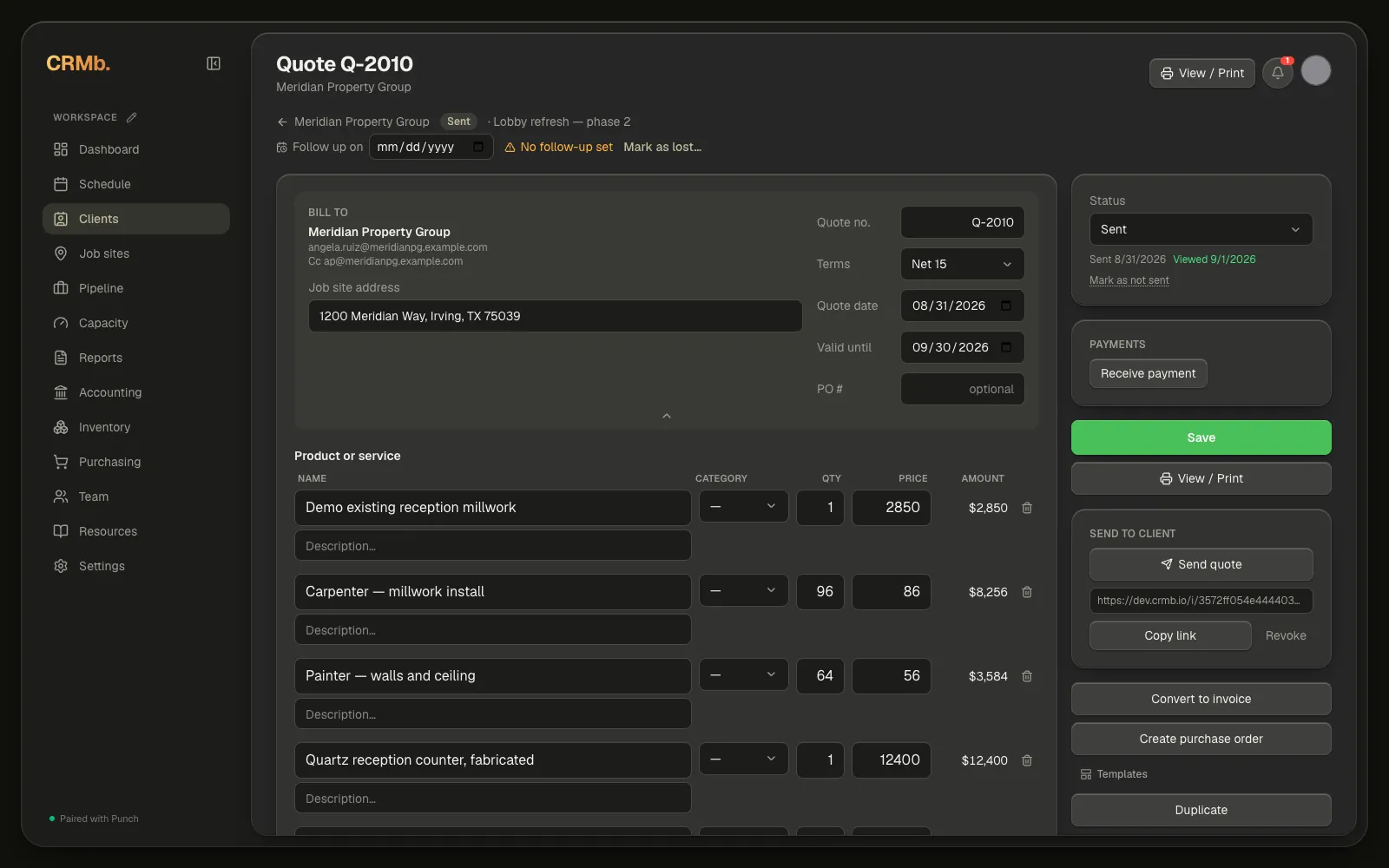
- Status — runs Draft, Sent, Accepted, Declined. You can set it yourself, and it also moves on its own when your customer answers the quote.
- Save and View / Print — Save writes your changes. View / Print saves first and then opens a printable copy, so what you're looking at is what's saved.
- Send to client — click Send quote to email it. CRMb saves the quote, mints the link your client opens (no login needed on their end), and opens an email window with the To, a Cc already filled in with anyone you've set to be copied, a subject and a message. Change any of it before you send.
- Copy link and Revoke — the link itself, Copy link and Revoke appear under the Send button once the quote has been sent at least once. Revoke disables a link that's already gone out.
- Convert to invoice — once the client approves, turn the quote into an invoice. It's the same document, so the line items, the client and the job all come with it. CRMb asks you to confirm first, because there's no way back: the Q- number is replaced by a new INV- number and isn't kept, and any stock the quote was holding is drawn from inventory for real.
- Create purchase order — start a PO from this quote's material lines. CRMb saves the quote first, then opens the PO editor where you pick the supplier.
- Templates, Duplicate and Delete — apply a saved template, duplicate the quote as a starting point for another one, or delete it.
Note — Send quote saves the quote for you before it goes out. Copy link doesn't: it shares whatever was last saved, so click Save before you copy a link.
Step 5 — What your client sees
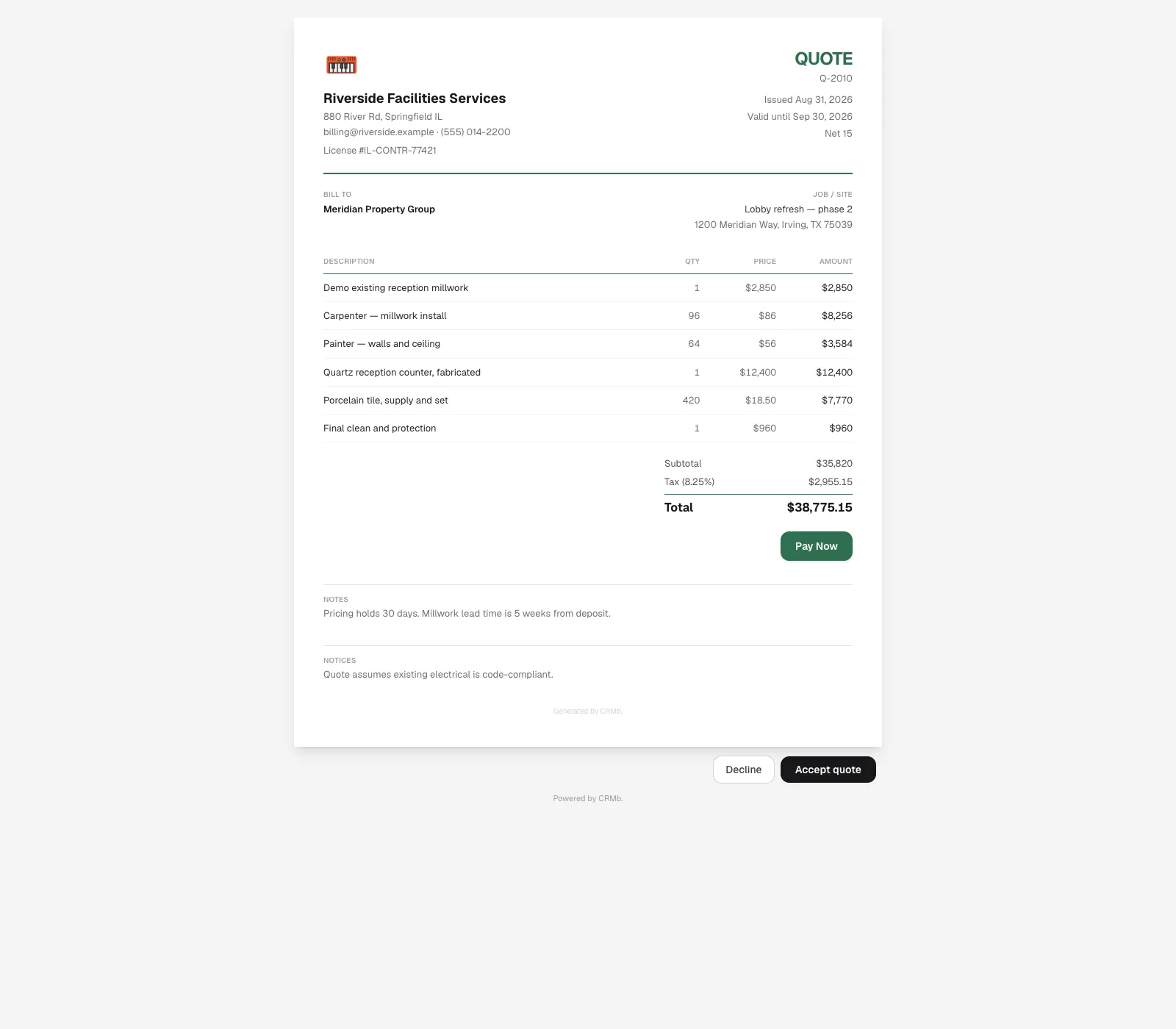
When they open the link, your client sees a clean, branded quote with your business info, the bill-to details, line items, and totals. Underneath it they get Accept quote and Decline — their response updates the status back in CRMb automatically.
Decline asks one optional question — why — with a Skip button beside it. Whatever they choose comes back to you on the quote.
If you've pasted your own payment link in Settings under Invoice & branding, its Pay Now button shows on the quote too, under the totals. Online payments through CRMb work on invoices only, so a quote never gets CRMb's own Pay button.
Step 6 — Chase it until they answer
Every quote carries a Follow up on date, on the line just above the editor. Set it and the date stays in front of you; a quote you've sent with no date reads No follow-up set until you pick one, and a date that has passed says so.
If the job goes somewhere else, Mark as lost… records it along with the reason. Once your client has answered, the same line shows Accepted with the date, or Lost with the reason they gave, and the follow-up date goes read-only — there's nothing left to chase.
