Team
Add a team member
How to bring someone onto your team — whether they'll sign into CRMb and Punch themselves, or you're adding them to the roster for scheduling and pay.
Team is shared with Punch — the same people, the same job sites, the same history in both apps. There are two ways to bring someone on: share the invite code and let them join themselves, or add them to the roster with no account at all, for staff you only need to schedule and pay.
Step 1 — Open Team
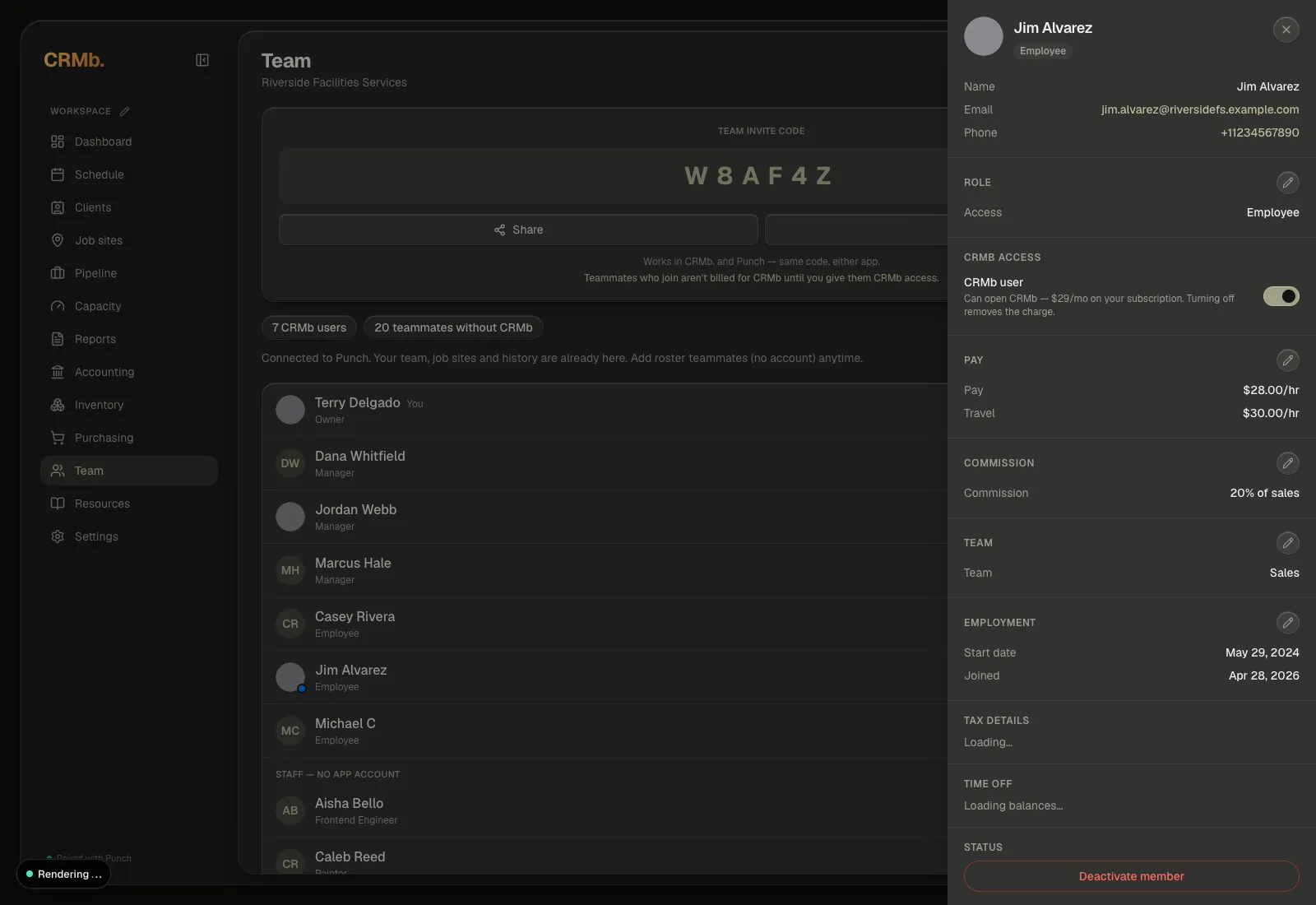
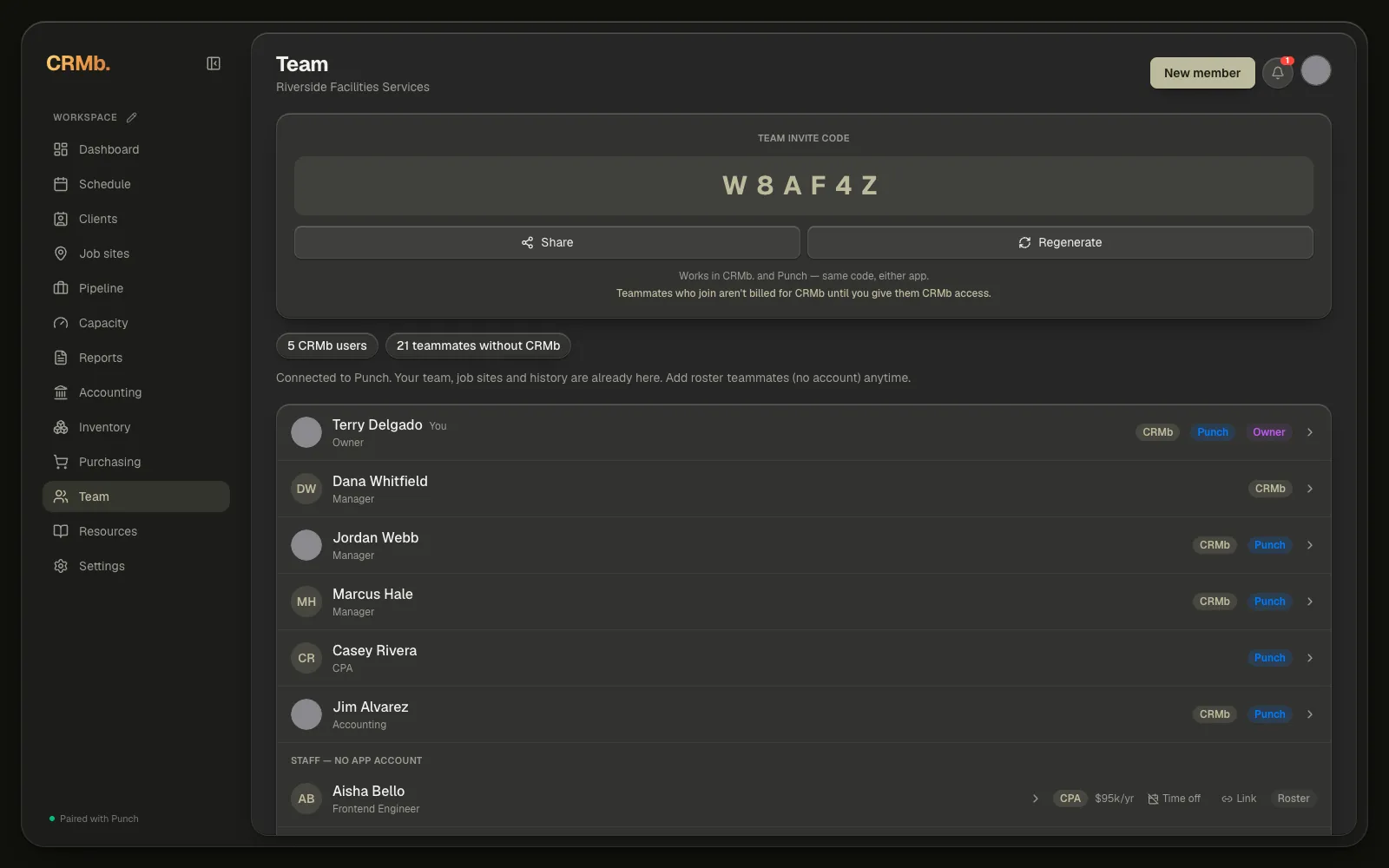
Team lives in the left-hand navigation. If you're the owner, the invite code sits at the top of the page; a manager won't see that card at all, so ask the owner for the code.
Above the list you get two numbers. The first is how many CRMb users you're paying for. The second is how many people on your team don't have CRMb. Together they add up to everyone in the list below. If you're the owner, tapping the CRMb users number takes you straight to your subscription.
Step 2 — Share the invite code
If someone should sign into CRMb or Punch themselves, click Share to send them the code, or Regenerate to issue a new one. The same code works in either app.
Regenerate replaces the code. The old one stops working straight away, so anyone you already sent it to will need the new one.
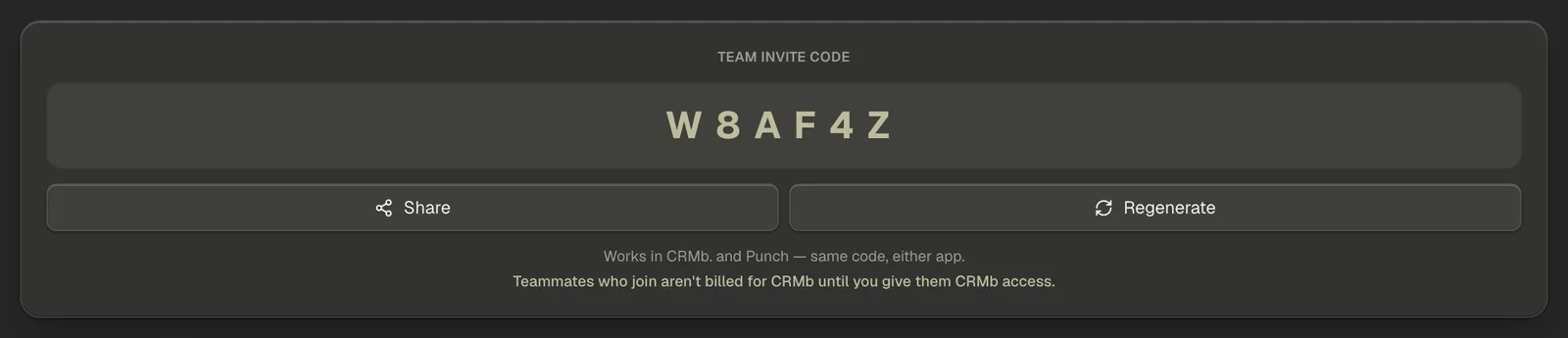
Note — What happens next depends on how you use CRMb. If your crew already punches in Punch, a teammate who joins isn't billed for CRMb until you switch on their CRMb access. If you use CRMb on its own, every teammate who joins becomes a CRMb user and $29/mo is added to your subscription right away. If you pay through the App Store or Google Play, your plan covers one CRMb user — adding more means moving your billing to the web, in Settings → Subscription.
Step 3 — Or add roster-only staff
For staff who won't use an app — you just need to schedule them and track their pay — click New member instead. No account needed: schedule them now, invite them later if that changes.
The form opens with a checkbox: They're our CPA. Leave it alone for a normal teammate — tick it only for an outside accountant, who joins free and sees just Accounting and Reports. Below that, fill in their name. Title (optional), Phone (optional) and Email (optional) are exactly that. Pick Hourly or Salary and enter the rate, then choose Add teammate.
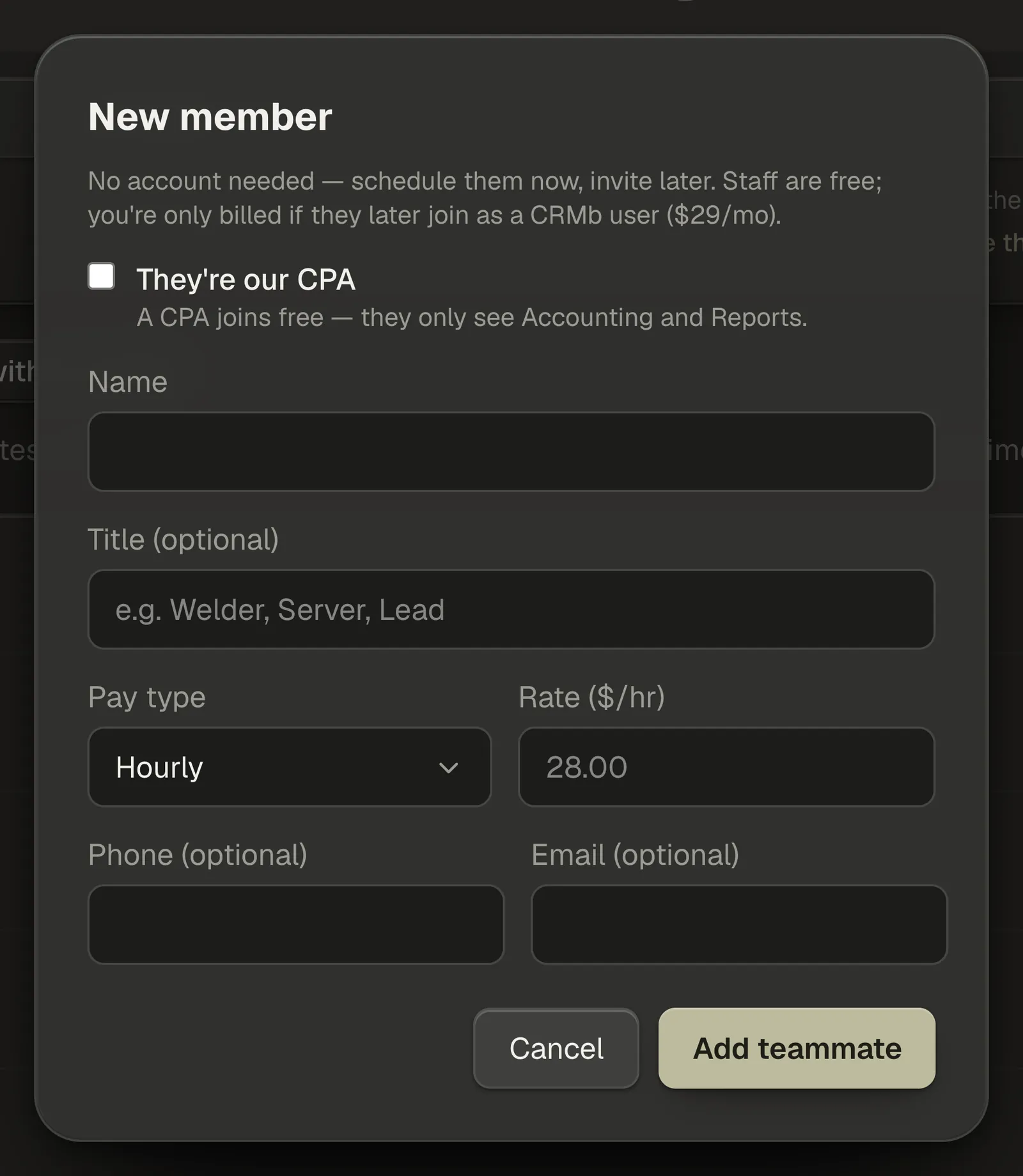
Note — Roster staff are free. You're only billed if you later turn on CRMb access for them — $29/mo, the rate for every CRMb user after the first, which is you.
Step 4 — Read the team list
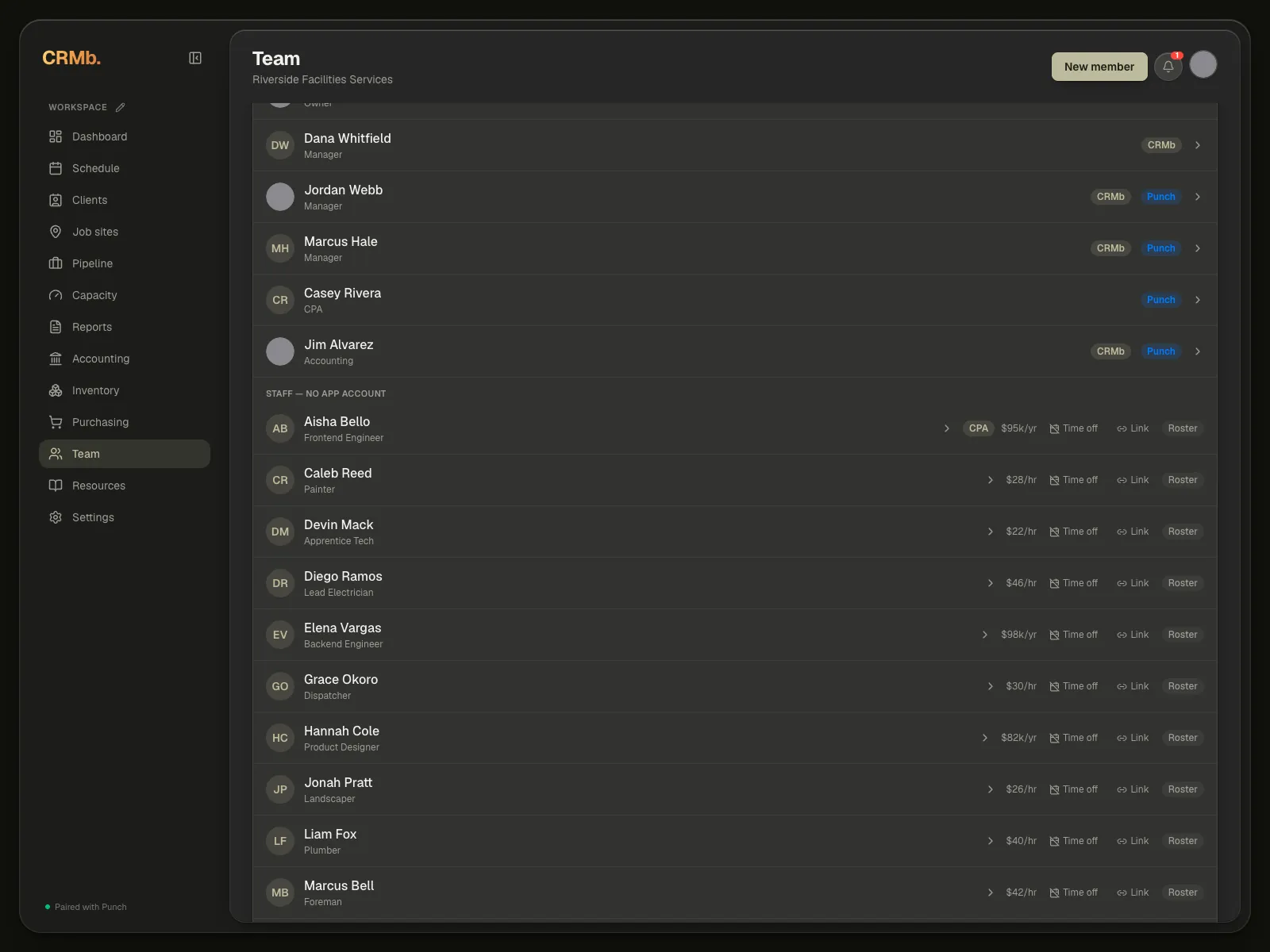
Teammates with accounts come first. Under each name you also see their role. A small blue dot on someone's photo means they're punched in right now; orange means they're on lunch. A CRMb pill marks the people you're paying a CRMb seat for, a Punch pill marks the people who punch in this org, and the owner carries an Owner pill. Tap any of them to open their details.
Below them, Staff — no app account lists your roster members with their pay rate, a Time off button, a Link button, and a Roster pill. Tap a roster teammate's name to edit them. Link only appears once you have app users to link to, and that merge can't be undone here. Anyone you've deactivated sits in their own Deactivated group at the bottom.
Step 5 — Set access and pay
Tap a teammate to open their detail panel — rows are only tappable for owners and managers. A manager reads what's there; the pencil that edits each section belongs to the owner.
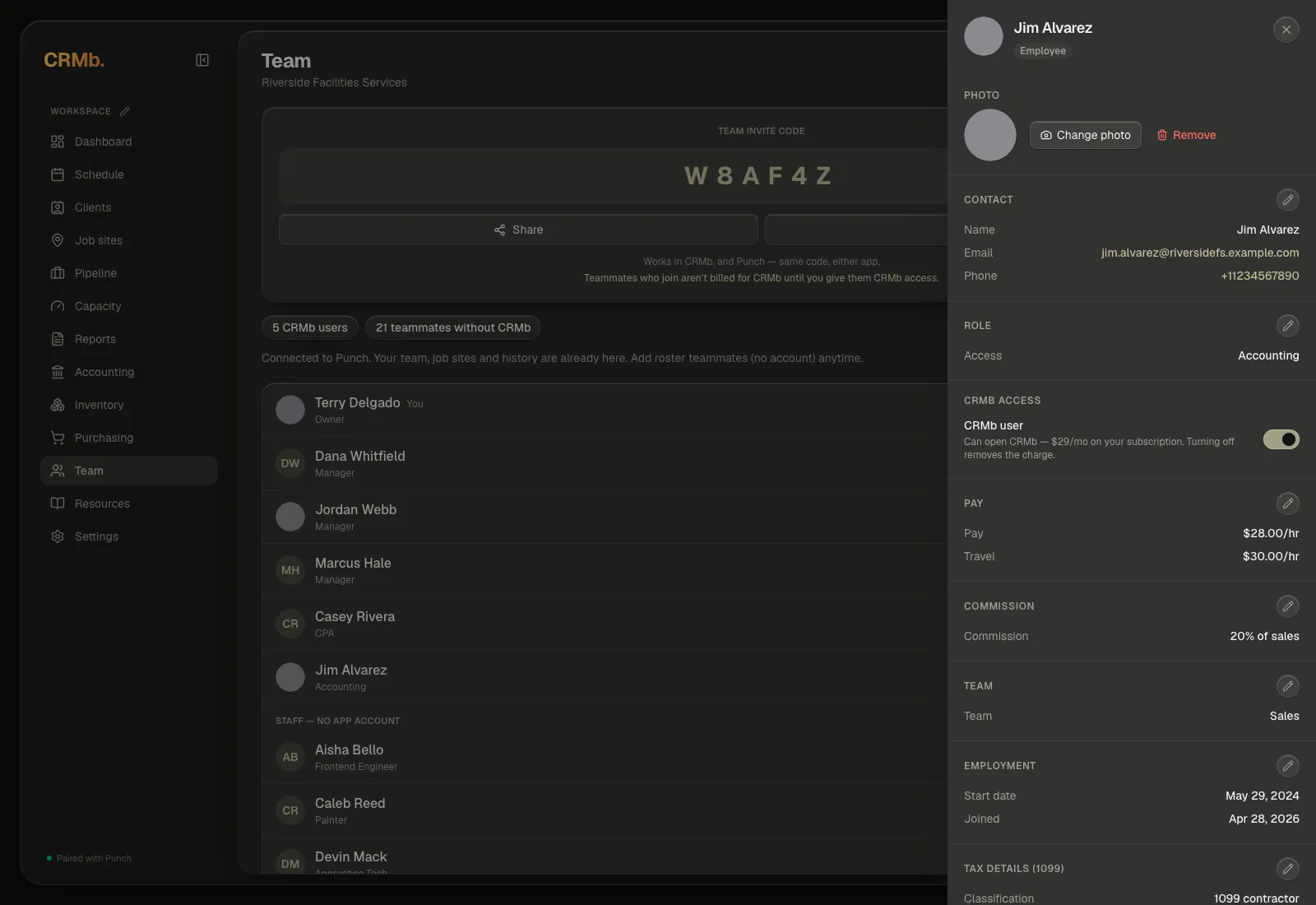
- Role — Owner, Manager, Employee, Payroll, Accounting or CPA.
- CRMb access — turn it on to let them open CRMb. That's what adds $29/mo to your subscription, and turning it off removes it, on a web subscription. If you pay through the App Store or Google Play, your plan covers one CRMb user and the switch says so.
- Pay and Commission — their hourly rate or salary, and whether commission applies.
- Team and Employment — put them on a team, and set their start date.
Note — Only the owner sees the CRMb access switch. Your own row shows Always included instead, and a CPA shows CPA — free, Accounting & Reports only, because neither is ever billed.
Step 6 — Tax details, time off and deactivating
Further down the same panel:
- Tax details — classification, legal name, address, entity and TIN, for the 1099s you'll file and the two payroll reports. Only the owner sees this block — on everyone's record, their own included; on your own record the choices are W-2 employee (only if your corporation pays you through payroll) or Owner's draw, never 1099. CRMb stores the number encrypted and shows you only the last four.
- Time off — running balances, read-only here, and you'll only see the buckets your organization actually uses.
- Deactivate member — takes them out of active scheduling and pay without deleting their history. Only the owner can deactivate someone, never on their own record, and CRMb asks for a reason. Reactivate member brings them back from the Deactivated group.