Job sites
Job sites overview
The addresses your crews punch in at, with the geofence that keeps Punch honest.
Job sites is your list of physical locations — office buildings, HOAs, plants, or any address your crews work at. Each site carries a pin on the map, and on a workspace connected to Punch it carries a geofence radius as well, so Punch can confirm someone is actually on-site before letting them punch in. A site can belong to a client, which is what puts it in front of you when you schedule that client's work, or it can stand alone if it isn't tied to one.
Step 1 — The Job sites list at a glance
Every site is listed with its name and its address. A site that belongs to a client carries that client's name beside it; a site with no client carries nothing — that's how you spot a standalone site at a glance. Where a site has a geofence, its radius sits at the right of the row in feet. Owners and managers also see a site's bill rate just before it, when one is set.
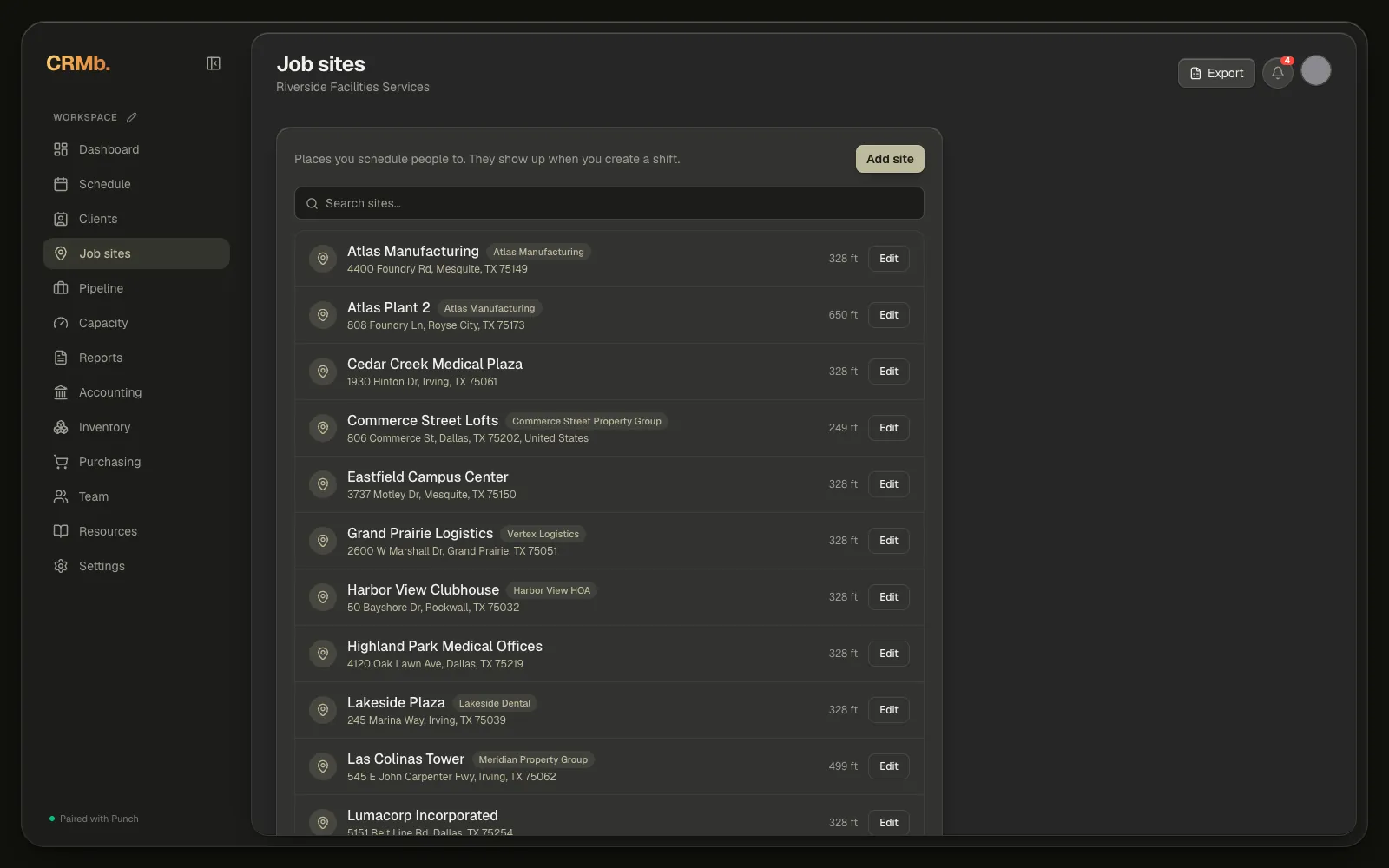
- Add site at the top right of the list creates one.
- The search box above the list — Search sites… — filters by site name, address, or client.
- Owners and managers also get Export at the top right, which saves the list as an Excel workbook with each site's address, client, geofence radius in metres, bill rate per hour, and status.
- The site's name and its client chip both open the client it belongs to. The address underneath opens in Maps.
- A retired site stays in the list, dimmed, with an Inactive badge, and sorts below the active ones.
Step 2 — Set up a site's address and geofence
Select Edit at the right of a row to open that site. Selecting the site's name opens the client it belongs to instead, so use Edit when you want to change the site itself. Name it in Site name, then set the location under Location & geofence (optional): type into Search address and pick a result, or drag the map to move it under the pin. The pin stays at the centre, and wherever it lands is the centre of the geofence.
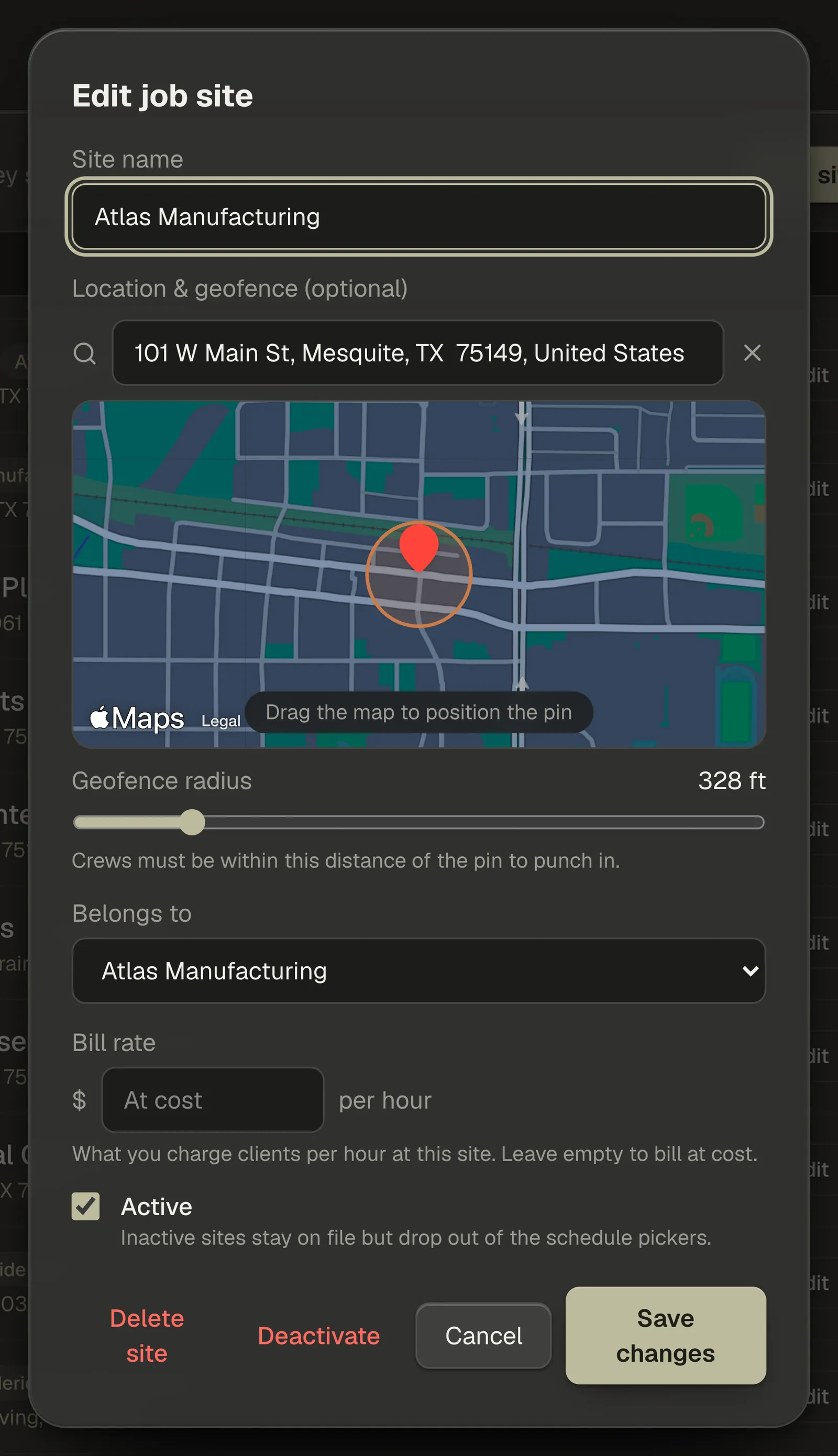
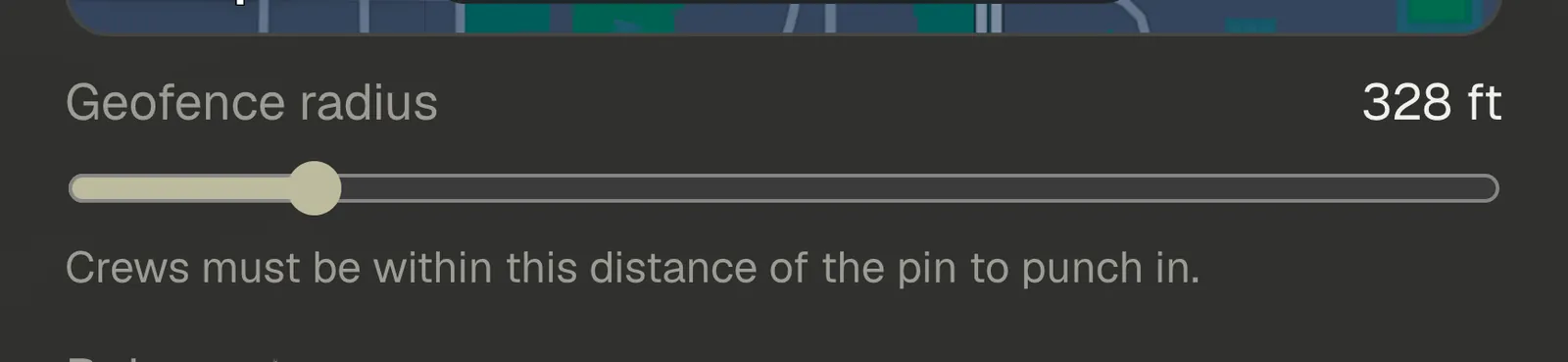
- Geofence radius — the slider controls how close a crew member has to be to that pin to punch in, anywhere from 75 ft to 1,650 ft. CRMb defaults new sites to 328 ft, and you can widen or tighten it per site. The radius appears once your org is connected to Punch, because the geofence is what Punch checks when someone punches in. On a CRMb-only workspace you get the address and the map, and no radius.
- Belongs to — link the site to a client and it follows that client onto the schedule: when you pick that client on a shift, the site picker narrows to their sites, and picks this one for you when it's their only one. Choose None — standalone site to leave it unlinked. Belongs to appears once you have at least one client on file.
- Bill rate — what you charge a client per hour for work at this site. When you use Pull Punch shifts on a quote or an invoice, hours punched here come in at this rate. Leave it empty — the box reads At cost — and they come in at your crew's cost, for you to price. Only owners and managers see this field.
- Active — clear the checkbox and Save changes to retire a site, or use Deactivate at the bottom of the panel to do it in one step. An inactive site stays on file and drops out of the schedule pickers; Reactivate brings it back.
Note — Delete site sits at the bottom left of the panel. It asks you to confirm first, and it's a real delete. A site that already has punches recorded against it can't be deleted at all — CRMb refuses and points you back at Active, so pay history and Reports never lose their site.
Note — Anyone on the team can add or edit a site. Only an owner or a manager can delete one or set its bill rate.