Capacity
Capacity overview
A tour of Capacity — who's scheduled, who's over- or under-committed, and where open work still needs an owner.
Capacity rolls up every team member's scheduled hours, punched hours, and open work for a chosen period, so you can spot who's overloaded, who has room to take on more, and what work still needs to be assigned. It works alongside Schedule and Punch — the numbers here come straight from what's been scheduled and what's actually been punched.
Capacity is for owners and managers. Employees never see it.
Step 1 — The Capacity overview at a glance
The top row summarizes the whole period: total hours Scheduled and their cost, hours Punched against what was scheduled, total Open work across outstanding tasks, and a Needs attention count for anyone over-committed or with unscheduled work.
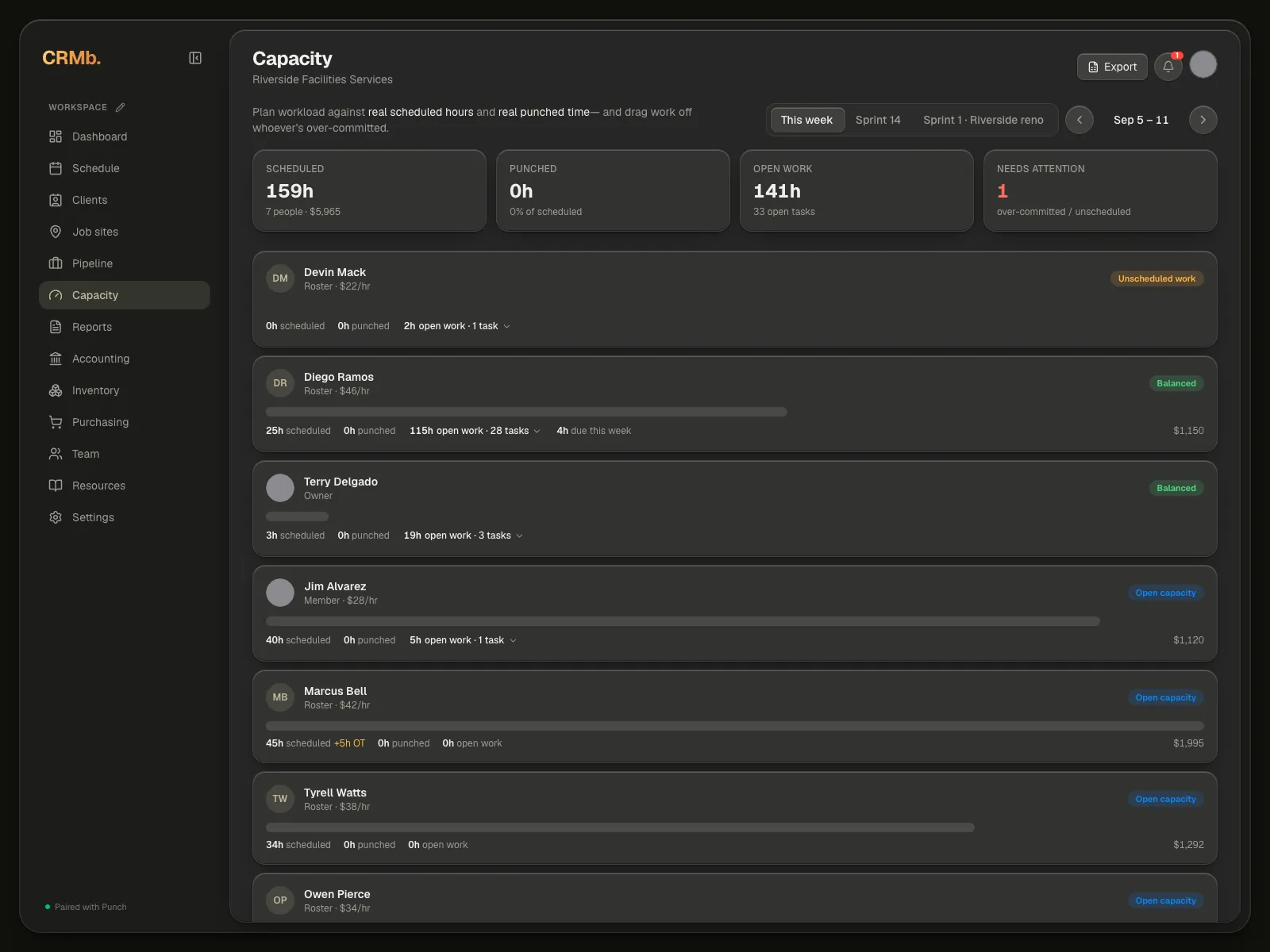
Each card is also a filter. Press one and the list below narrows to those people; press it again to clear it. While a filter is on, a line above the list reads "Showing 3 needing attention", with Show all on the right.
Below the cards, everyone with hours scheduled or work assigned gets a row with their own scheduled, punched, and open hours, plus a status badge. People with no shifts and no assigned work are kept off the list, and a line at the bottom counts them.
Under the name sits a two-layer bar. The muted layer is the hours you scheduled; the coloured layer over it is the hours actually punched, and it turns red when someone punched more than you scheduled. Every bar is drawn to the same scale, so you can compare people at a glance.
The pill on each person is one of four:
- Unscheduled work — they have tasks on their name but no shifts booked.
- Over-committed — more work is due inside this window than they have hours scheduled.
- Balanced — the work on their name lines up with the hours you gave them.
- Open capacity — their open work is half their scheduled hours or less, so there's room for more.
Underneath the team list, Unassigned open work collects any tasks with no assignee at all. Every task in this list has a dropdown on the right reading Assign to…. Pick a name and the task moves to that person straight away — the hours leave the unassigned pile and land on their row.
Export at the top right hands you an Excel workbook of the window: one sheet listing every person with their scheduled, punched and overtime hours, their open work and their cost, and a second sheet listing every open task.
Note — Punched hours come from Punch. If a shift has no punch but somebody recorded the actual hours by hand, that's used instead; a no-show counts as zero.
Step 2 — Switch between week and sprint views
The period lives at the top right, beside the date. Once your org has sprints with dates on them, a row of buttons appears there: This week, then one for each sprint, newest first — completed sprints stay in the list. This week measures the current week; picking a sprint scopes the same summary cards and team rows to that sprint's date range instead.

Note — The arrows either side of the date step you back and forward one week at a time, and a This week button appears whenever you've wandered off the current one. Pick a sprint instead and the arrows go away — a sprint has its own fixed dates.
Note — The week starts on the day your org's pay week starts, which is set in Settings. It isn't always a Monday.
Step 3 — Drill into a person's open work
Press a person's open work figure — the one with the chevron at the end of it — to see every task behind that number, each with its estimated hours, its due date, and a dropdown to move it to someone else on the spot. A task that already has an owner also offers Unassign. People with nothing open show 0h and don't expand.

Step 4 — Read a sprint's capacity
A sprint reads exactly like a week, with three differences: the date range is the sprint's own, only tasks in that sprint count toward anyone's open work, and the line on each row reads "due this sprint".
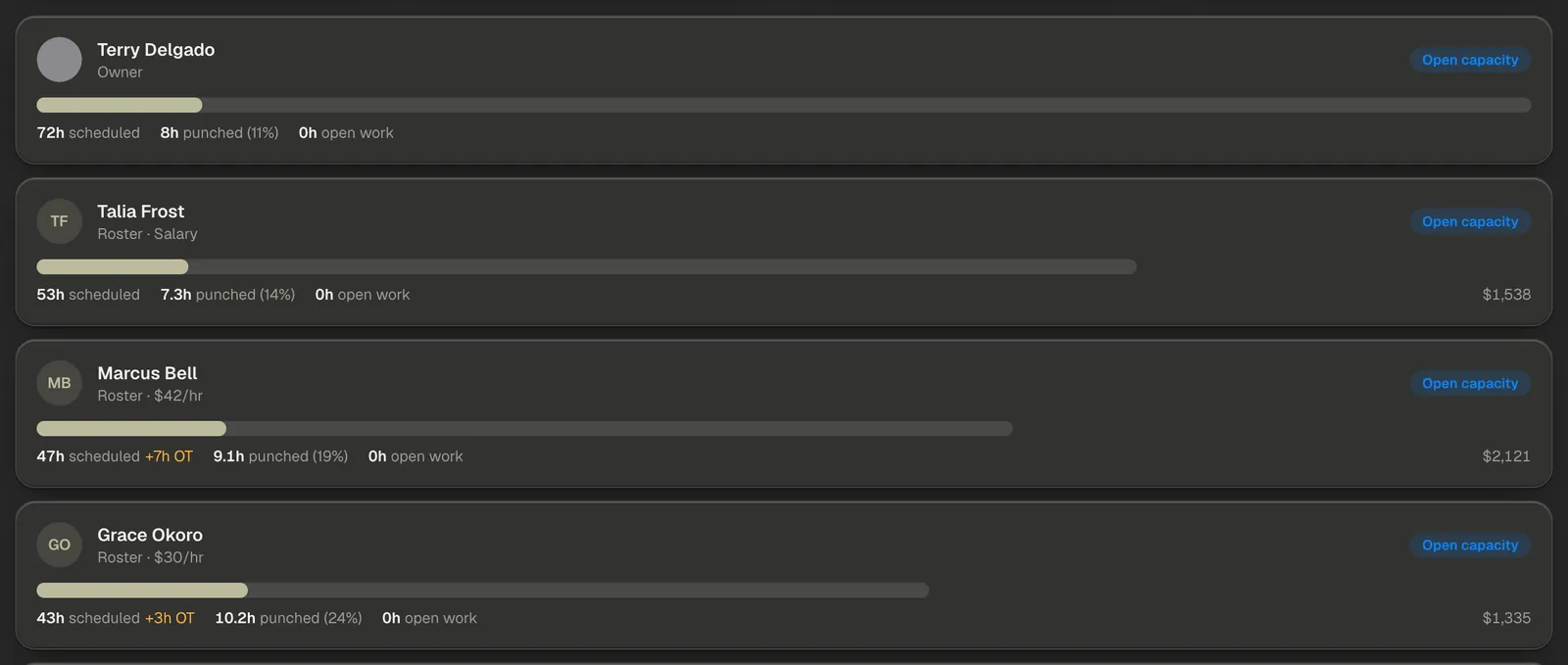
Beside the scheduled hours you get the hours actually punched, with the percentage of the plan they represent — for example "31.5h punched (83%)". When someone is scheduled into overtime, the OT hours show beside their scheduled figure. And where you're allowed to see that person's pay, their cost for the window sits at the right edge of the row.
Note — Needs attention reads 0 with all balanced underneath when every person's scheduled load fits their capacity for the sprint. That count rises the moment someone is over-committed or left unscheduled.